

You typed a password into a strength-checking website to see how strong it is. The meter turned green. But did that password just leave your device?
This guide answers the safety question directly, then walks through the threats that make unsafe checkers dangerous in 2026 — credential stuffing and AI brute-forcing — and shows you how to create password strength you can actually trust: with a client-side generator, an encrypted password manager, and multi-factor authentication.
What Does a Password Strength Checker Actually Do?
A password strength checker estimates how hard your password would be to crack. It measures length, character variety, and predictability, then reports an entropy score or a strength label. The problem is not what the tool calculates — it is where the calculation happens.
When the checker sends your password to a remote server for analysis, that password travels across the internet. It can be intercepted in transit, written to a server log, or captured by a malicious script on the page. A green "strong" badge means nothing if a copy of your password now sits on someone else's machine.
Server-Side vs. Client-Side: The Only Difference That Matters
Every password tool falls into one of two categories. Understanding the split is the single most important thing you can learn about password safety online.
Server-side checker (unsafe)
- Sends your password to a remote server for analysis.
- Data travels across the internet and can be intercepted.
- The server could secretly log every password you test.
Client-side checker (safe)
- Runs entirely inside your browser using local JavaScript.
- The password is generated or evaluated on your machine.
- Your password never touches the internet or reaches a server.
A client-side tool downloads the code to your browser, but the actual evaluation happens locally. You can prove it: load the page, turn off your Wi-Fi, and the checker still works. That offline test is the fastest way to confirm a tool is safe.
How to Identify a Safe Password Tool
Before you trust any tool to create or test passwords, verify these three things:
- Offline capability: Can you load the website, turn off your Wi-Fi, and still generate or test a password? If yes, it is client-side and safe.
- No data collection: Read the privacy policy. The site must explicitly state that it does not log keystrokes or store generated passwords.
- Open source code: The best security tools let anyone inspect their code to prove they are not stealing data.
The CreatePassword strength checker runs entirely in your browser, and the secure password generator uses your device's cryptographic random source — so neither one ever transmits what you type.
The State of Cybersecurity in 2026
Hackers do not guess passwords manually anymore. They use automated systems, leaked databases, and artificial intelligence to break into accounts at scale. Understanding these threats is the first step to beating them.
Credential stuffing attacks
Credential stuffing is a numbers game. When a massive website gets hacked, criminals steal millions of usernames and passwords. They buy these lists on the dark web. Then they use automated bots to test those exact login combinations across banking, email, and social media sites.
If you use the same password for your email and your favorite clothing store, a breach at the clothing store hands hackers the keys to your email. Bots can test thousands of logins per second. Check whether your email has appeared in a known leak before attackers test it for you.
AI brute-forcing
Brute-forcing used to mean trying every possible combination of letters and numbers. It was slow. Today, AI brute-forcing is highly targeted.
Modern AI models analyze human psychology. They know people capitalize the first letter, add a number at the end, and use an exclamation point. They scan your social media to find your pet's name, your birth year, and your favorite sports team. The AI builds a custom dictionary just for you, cracking passwords in minutes that would have taken a traditional computer years.
| Threat type | How it works | How to defend against it |
|---|---|---|
| Credential stuffing | Bots test stolen passwords across hundreds of websites. | Use a unique password for every single account. |
| AI brute-forcing | AI guesses passwords based on personal data and common patterns. | Use long, random passphrases without personal information. |
| Phishing | Fake websites trick you into typing your password. | Use hardware security keys or password managers that verify URLs. |
The Golden Rule: Never Reuse a Password
Account compromise almost always stems from password reuse. You can create the strongest password in the world, but if you use it on 15 different sites, your security is only as strong as the weakest site on that list.
Reusing passwords creates a domino effect. One breached forum account can lead to a hijacked bank account. The defense is simple in principle and non-negotiable in practice: a unique password for every single account, with zero exceptions.
Why Humans Fail at Password Creation
Humans are predictable. When told to create a secure password, most people follow the exact same patterns:
- Adding "2026" to the end of a word.
- Replacing "a" with "@" or "s" with "$".
- Capitalizing only the first letter.
- Using keyboard walks like "qwerty" or "12345".
Hackers program their software to check these exact patterns first. True security requires randomness, which the human brain struggles to generate. This is why a client-side generator — not your imagination — should create password strings for the accounts you care about.
How to Create Memorable Passwords (The Passphrase Method)
You need passwords that machines cannot guess but you can actually remember. The best method is the Diceware or passphrase method: stringing together 4 to 6 completely unrelated words.
To make passphrases memorable, you can break them into logical, highly readable categories. Treat every example below as a format illustration — never adopt a phrase published on a public page, because it can end up in an attacker's wordlist. Generate your own passphrase locally instead.
Funny passphrases
Humor sticks in the brain. Create a password based on an absurd, funny mental image.
- Penguin-wearing-a-red-tuxedo
- Angry-toaster-burned-my-waffles
Why it works: It is 30+ characters long, entirely random, but easy to visualize and type.
Cute passphrases
Use soft, pleasant imagery. This works well for accounts you log into daily, keeping the experience positive.
- Sleepy-kitten-on-a-cloud
- Three-tiny-hedgehogs-snacking
Why it works: The brain remembers emotional and visual triggers.
Aesthetic passphrases
Lean into atmospheric or highly descriptive words.
- Neon-rain-falling-on-concrete
- Midnight-ocean-glowing-blue
Why it works: It uses uncommon vocabulary, which defeats basic dictionary attacks while remaining highly memorable.
Four random words strung together can take a computer roughly two million years to guess, compared to a complex 8-character password that falls in minutes. Verify any passphrase you create with the client-side strength checker before you adopt it.
How to Use a Client-Side Password Generator Safely
You should not think up your own passwords for every site. You should use a generator. But typing or generating passwords online carries risks if the tool is built poorly.
A server-side generator creates the password on the company's web server and sends it to your screen over the internet. This is dangerous — the data travels through the web, and the server could secretly log your new password. A client-side generator runs entirely inside your browser using JavaScript. The website downloads the code, but the password generation happens locally on your machine. Your new password never touches the internet. It never reaches a server.
The same logic applies to strength checkers: if the tool has to send your input anywhere to produce a result, it is not safe to test a real password with it. Generate secure passwords locally with the client-side generator — the result never leaves your device.
Why You Need an Encrypted Password Manager
Memorizing passphrases is great for your master email and banking accounts. However, the average person has over 100 online accounts. You cannot memorize 100 passphrases. You need a password manager.
How password managers work
A password manager is a secure digital vault. It generates, stores, and auto-fills your login details. You only need to remember one strong master password (your memorable passphrase) to unlock the vault.
Zero-knowledge architecture
The best password managers use "zero-knowledge encryption." This means your data is encrypted and decrypted locally on your device. The password manager company only ever receives scrambled, unreadable data. Even if hackers breach the password manager's servers, they cannot read your passwords. They do not have your master key.
Seamless tool integration
Password managers integrate directly with browser extensions and mobile apps. When you land on a login page, the manager verifies the website's digital signature. If a hacker sends you to a fake phishing site (like PaypaI.com instead of Paypal.com), the password manager will refuse to autofill. This neutralizes phishing attacks entirely. Test your current password strength to confirm the credentials inside your vault hold up.
The Final Layer: Setting Up Multi-Factor Authentication
Passwords alone are no longer enough. Even the strongest password can be stolen via malware or a targeted phishing attack. You must add multi-factor authentication (MFA) to all critical accounts.
MFA requires two things to log in: something you know (your password) and something you have (your phone or a security key).
SMS text messages (weakest MFA)
Receiving a code via text message is better than nothing, but it is vulnerable to SIM-swapping. Hackers can trick your mobile carrier into moving your phone number to their device, allowing them to intercept your text messages.
Authenticator apps (strong MFA)
Apps like Google Authenticator, Authy, or your password manager's built-in authenticator generate a new 6-digit code every 30 seconds locally on your device. Since it does not rely on cell service, hackers cannot intercept it remotely.
Hardware security keys (ultimate MFA)
Physical security keys, like a YubiKey, offer the highest level of protection. You plug the USB key into your computer or tap it against your phone to log in. They use cryptographic protocols that make phishing mathematically impossible.
For a step-by-step walkthrough, follow the MFA setup and password best practices guide.
Practical Security Checklist
- Test passwords client-side only. Never type a real password into a server-side checker.
- Use a unique password for every account. One breach must never unlock another account.
- Generate with a client-side tool. Let your browser's cryptographic randomness create password strings of 16+ characters.
- Adopt a passphrase for master keys. Use 4–6 random words for the logins you must memorize.
- Move everything into a zero-knowledge manager. Stop memorizing dozens of credentials.
- Turn on MFA. Prefer an authenticator app or hardware key over SMS.
- Scan for exposure. Check whether your email already appears in a known leak.
Final Takeaway
The safety of a password strength checker depends entirely on where the calculation happens. A server-side tool turns your password into network traffic; a client-side tool keeps it on your device. Choose the client-side option, pair it with a zero-knowledge password manager and strong MFA, and you have done more to protect your accounts than any strength meter ever could.
Resources & Tools
CreatePassword tools and guides mentioned above:
- Client-side password strength checker — evaluate entropy without sending data to a server
- Secure password generator — create a random password locally in your browser
- Diceware passphrase generator — build a memorable multi-word passphrase
- Password breach checker — check whether your email appears in a known leak
- Password best practices 2026 guide — MFA setup and modern hygiene
- Complete guide to creating strong passwords — entropy, length, and threat vectors
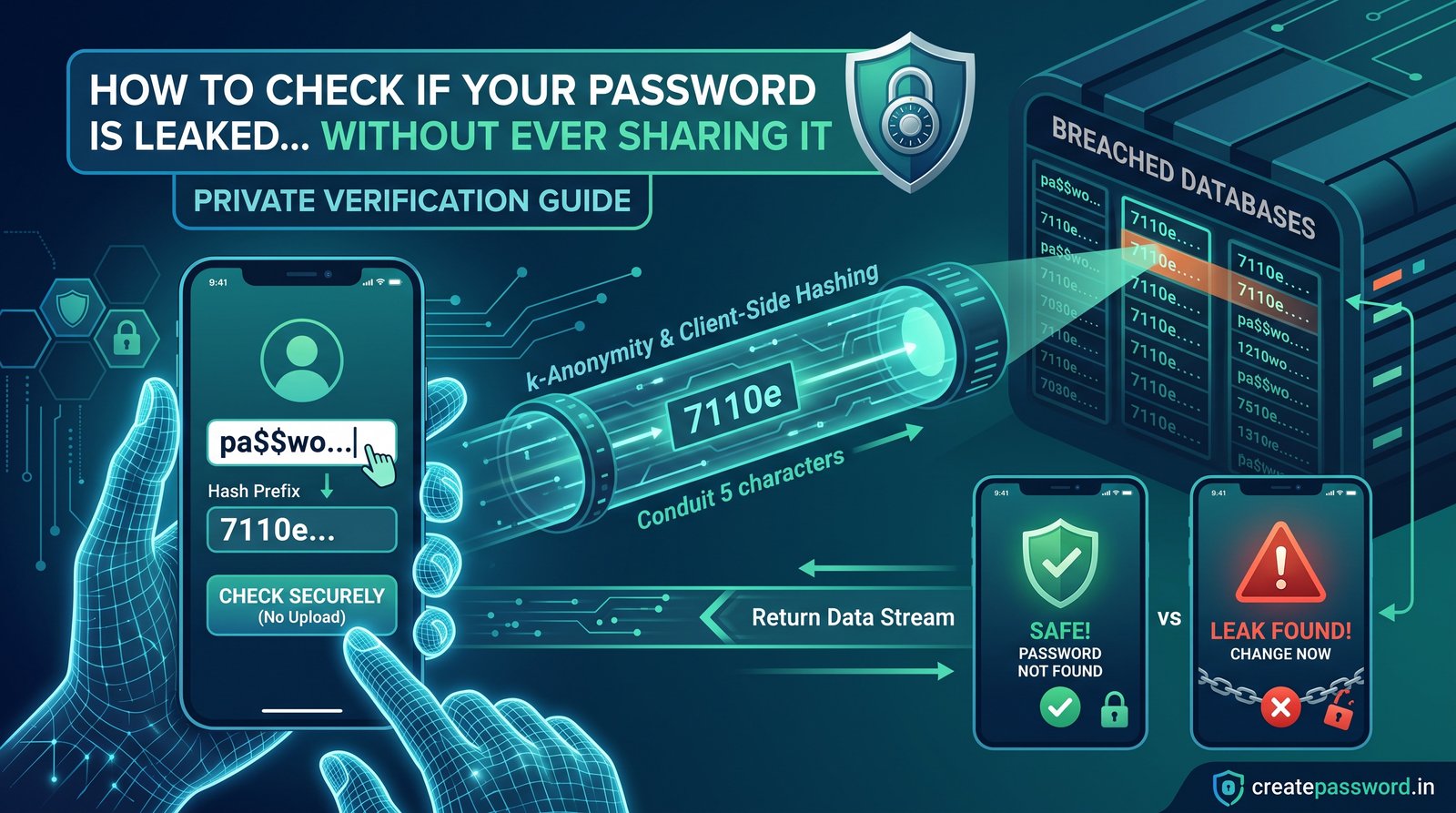
- How to check a leaked password safely — safe breach-checking workflow

Leave a comment
Comments are moderated before appearing. Please keep it respectful and on-topic. Your email is required for verification but is never displayed publicly or shared.