
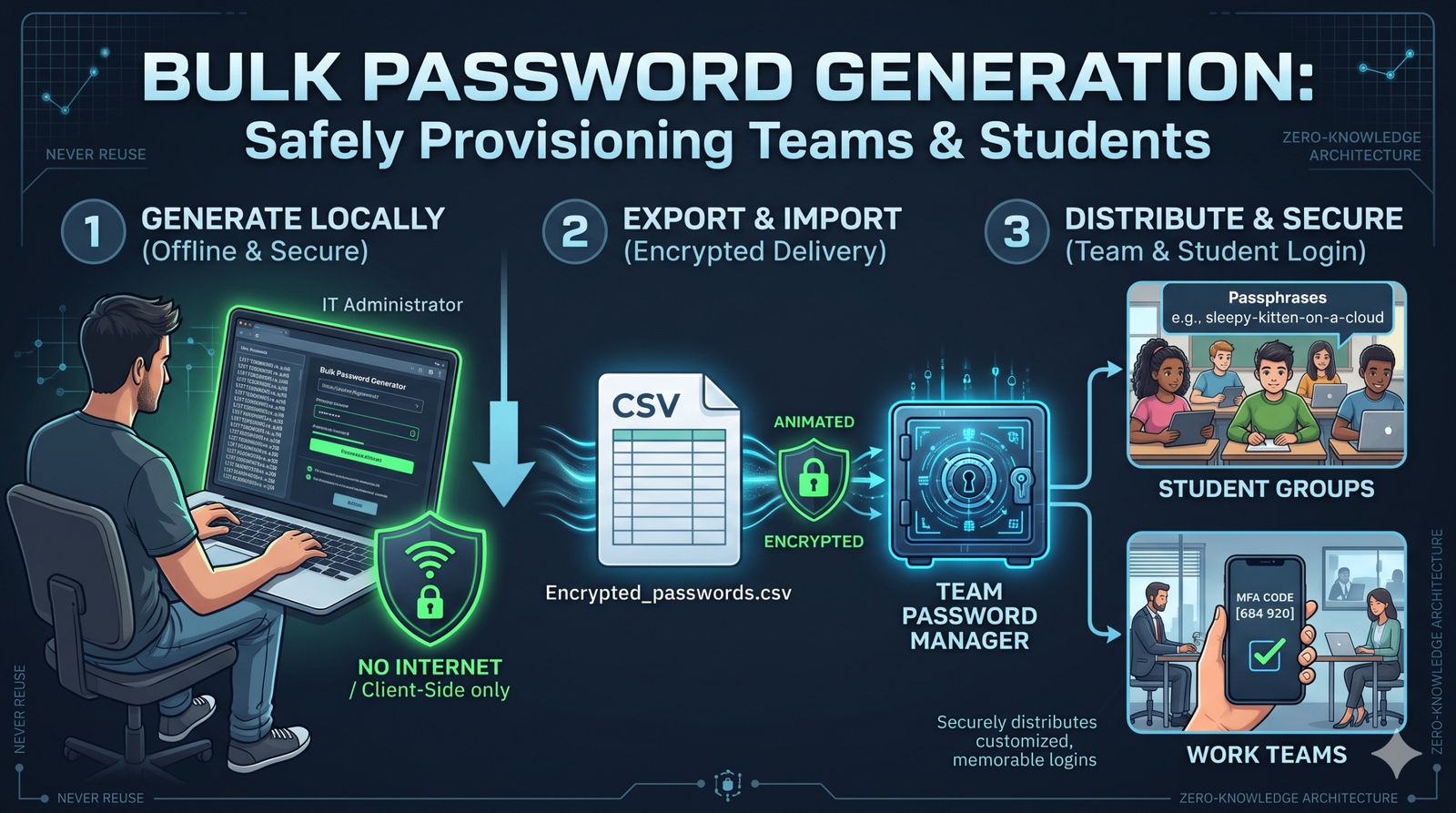
You need hundreds of logins for new hires or a new classroom, and you need them today. A shared spreadsheet, a server-side generator, or one reused password will not hold.
That workflow keeps the list off someone else's server, gives each person a unique credential they can actually remember, and still leaves a second check if a passphrase is exposed. This guide covers the 2026 threat picture, the passphrase method, how to verify a client-side bulk password generator, why a team vault beats a spreadsheet, and how to finish with MFA.
The State of Cybersecurity in 2026
Securing a company or a classroom means understanding how accounts are actually broken today. Attackers no longer sit and guess passwords by hand. They run automated systems, reuse massive leaked databases, and apply artificial intelligence to breach networks at scale.
Credential stuffing attacks
Credential stuffing starts with stolen data. Criminals buy lists of usernames and passwords from earlier breaches and program bots to test those exact combinations against your portals, VPNs, and email servers.
If a student or employee reuses a personal social-media password on a school or work account, a consumer-site breach becomes a path into your network. Those bots test thousands of logins per second. Check whether an email already appears in a known leak before you issue new accounts on the same address.
AI brute-forcing
Traditional brute-forcing tried every character combination until something unlocked. It was slow. AI brute-forcing is targeted and much faster.
Modern models study human habits and public organizational data. They can scan LinkedIn profiles or school directories and build a custom dictionary. They expect a capital first letter, the current year on the end, and a local sports team. Standard "complex" passwords fall in minutes under that approach.
| Threat type | How it operates | Administrative defense |
|---|---|---|
| Credential stuffing | Bots test stolen passwords across hundreds of corporate and school portals. | Force a unique, system-generated password for every user account. |
| AI brute-forcing | AI guesses credentials from user data and psychological patterns. | Issue long, randomized passphrases with no personal information. |
| Phishing | Fake login pages trick users into handing over credentials. | Deploy hardware security keys, or password managers that verify the URL. |
The Golden Rule: Never Reuse a Password
Account compromise across organizations almost always traces back to password reuse. You can issue the strongest credential possible, but if an employee reuses it on a personal shopping site, your network security drops to the level of that site.
Reuse creates a domino effect. One breached student account can lead to a hijacked faculty network. One compromised low-level employee account can allow lateral movement toward executive data. The rule for every account you create password records for is the same: one credential, one service, no exceptions.
How to Create Password Lists at Scale
When you generate hundreds of credentials, security has to survive contact with real people. A 20-character string of random symbols handed to a third-grade student or a busy sales representative will end up on a sticky note.
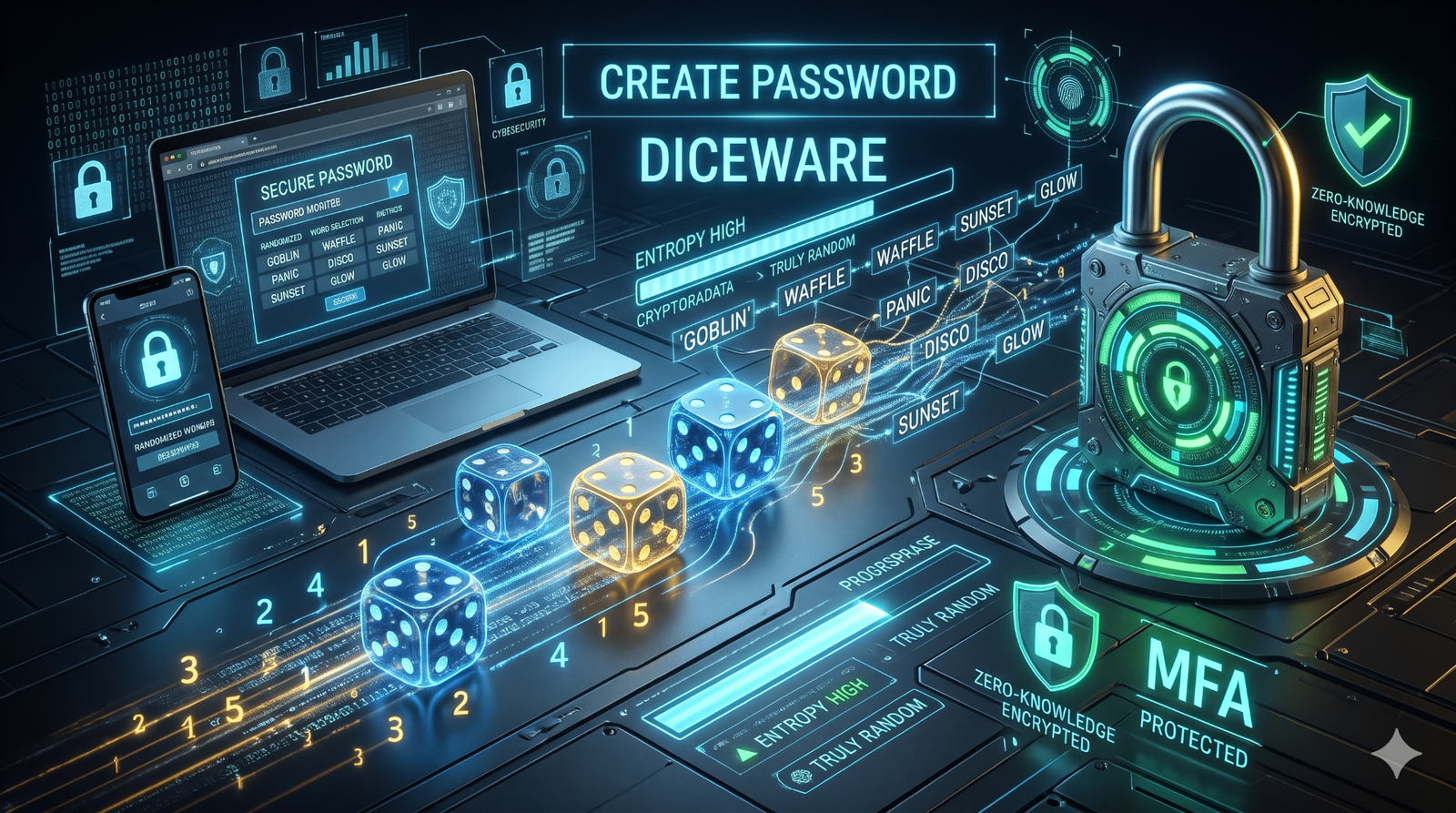
The practical method is a passphrase: completely unrelated words joined together. To help people remember them without writing them down, group the phrases by theme. Treat every example below as a format illustration only. Do not issue a phrase published on a public page — generate a fresh list with the passphrase generator or the bulk password generator.
Funny passphrases
Humor creates a strong memory association. Absurd images work well as master passwords for team members.
- Angry-toaster-burned-the-server
- Penguin-wearing-a-neon-tuxedo
Why it works: The string exceeds 30 characters, which defeats basic dictionary attacks, and it stays memorable.
Cute passphrases
Soft, pleasant imagery works especially well when you are generating bulk logins for young students.
- Sleepy-kitten-on-a-cloud
- Three-tiny-hedgehogs-snacking
Why it works: Children can visualize emotional and visual triggers without fighting a string of symbols.
Aesthetic passphrases
Atmospheric, descriptive words suit creative agencies and design teams.
- Neon-rain-falling-on-concrete
- Midnight-ocean-glowing-blue
Why it works: Uncommon vocabulary raises entropy enough to resist the pattern-matching used in AI brute-forcing.
Do this for student login security
- Issue a 4-word themed passphrase the student can picture.
- Generate it locally, then import the CSV into the school identity system.
- Require MFA on first login.
Do not do this
- Hand out a 20-character symbol string and expect it to stay off paper.
- Reuse one classroom password, or a password from a personal account.
- Build the list in Excel or email it to the teacher.
How to Use a Client-Side Password Generator Safely
IT admins should not generate bulk passwords with an online, server-side tool. If a website builds the list on its server and sends it to your screen, the site owner could log the entire batch of new credentials.
Server-side vs. client-side infrastructure
A server-side generator processes data on an external computer. The list travels across the web. That is a critical exposure for an enterprise or school deployment.
A client-side generator runs inside the local browser with JavaScript. The site provides the code; the actual generation happens on your machine's processor. The new bulk list never touches the internet.
Three checks before you trust a tool
- Offline capability. Load the page, disconnect from the internet, and click generate. If it still produces 500 passwords, it is client-side.
- No data collection. The privacy policy must explicitly guarantee zero keystroke logging and zero server transmission.
- Open source code. Secure tools let independent researchers inspect the code and verify that data stays local.
The CreatePassword bulk password generator runs in the browser, so you can create password batches locally and export them without a server round-trip. For single memorable logins, use the passphrase generator the same way.
Why Teams Need an Encrypted Password Manager
A custom passphrase is a good fit for a primary workstation login. Modern employees also hold dozens of software licenses, portals, and shared team accounts. Spreadsheets and browser storage are not a substitute. The organization needs an enterprise password manager.
Centralized administration and provisioning
A team password manager is a secure vault. You generate 100 unique credentials, import that CSV, and provision access to specific teams without ever showing the employee the password itself.
Zero-knowledge architecture
Reputable enterprise managers use zero-knowledge encryption. Data is encrypted and decrypted on the employee's device. The vendor stores only scrambled ciphertext. If the vendor is breached, the organization data stays unreadable, because the master decryption keys remain with staff.
Defeating phishing automatically
Managers that integrate as browser extensions check the site before they fill a login. If someone lands on a lookalike such as G0ogle.com instead of Google.com, the manager refuses to autofill. That is a practical control against the phishing row in the threat table above. For the policy side of managing team passwords, see the workplace password security guide.
The Final Layer: Multi-Factor Authentication Setup
Passwords are the first line of defense, not a complete one. Malware, advanced phishing, or shoulder-surfing can expose a strong passphrase. Mandate multi-factor authentication across the organization.
MFA asks for two checks:
- Something the user knows — the generated passphrase.
- Something the user possesses — a mobile device or a hardware key.
SMS text messages (the weakest MFA)
A one-time text code is basic protection, and it fails against targeted attacks. SIM-swapping can move an employee's number to an attacker's phone. Avoid SMS MFA for corporate and educational environments.
Authenticator apps (strong MFA)
Google Authenticator, Microsoft Authenticator, and Duo generate a time-based 6-digit code on the phone. Because the app builds the code offline, it is not intercepted through cell towers. This is the practical standard for most student and employee accounts.
Hardware security keys (strongest MFA)
A physical key such as a YubiKey or Google Titan is the enterprise-grade option. The person plugs the USB key into a laptop or taps it against a phone. The cryptographic protocols make remote phishing of that factor impractical, which is why they belong on the most sensitive admin accounts.
Only change these credentials if you suspect a compromise. NIST SP 800-63B warns that forced periodic resets push people toward predictable variations of the old password. The 2026 password best practices guide covers that lifecycle in more detail.
Practical Checklist for IT and Educators
- Generate locally. Confirm the tool still works with the network disconnected.
- Prefer passphrases over symbol strings people will write down.
- Make every login unique. No shared classroom password, no reused personal password.
- Export an encrypted CSV and import it into the password manager or identity system. Do not email the file.
- Provision access so staff and students can sign in without seeing every shared secret.
- Require MFA on first login. Prefer an authenticator app; use a hardware key for admin accounts. Skip SMS.
- Store recovery codes before you hand out hardware keys.
- Do not force 90-day resets. Rotate a credential when you suspect it is compromised.
- Keep admins out of master passwords. Reset access; do not collect the secret.
Final Takeaway
Bulk provisioning is safe when generation never leaves the administrator's machine, each person receives a unique passphrase they can remember, and the vault plus MFA — not a spreadsheet — carries the credentials after that. That is how you create password lists for teams and students without handing the batch to a server you do not control.
Resources & Tools
- Client-side bulk password generator — create a local list and export it
- Passphrase generator — build memorable multi-word logins
- Password generator — random credentials for accounts a manager will store
- Breach checker — see whether an email already appears in a known leak
- Workplace password security guide — managing team passwords without reuse
- Password best practices 2026 — MFA choices and reset policy
- Diceware passphrase guide — how random word lists get their strength
Leave a comment
Comments are moderated before appearing. Please keep it respectful and on-topic. Your email is required for verification but is never displayed publicly or shared.