
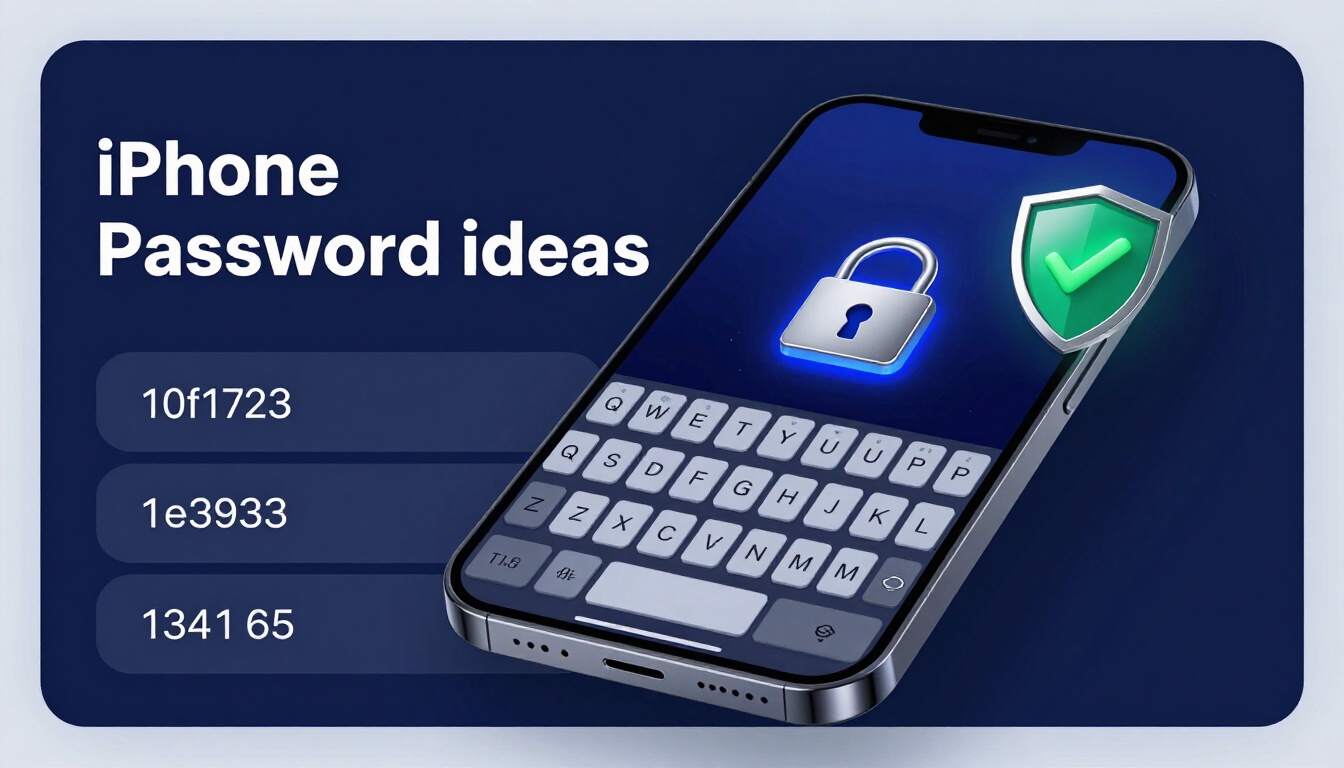
The most secure iPhone password ideas use a Custom Alphanumeric Passcode rather than a standard 6-digit PIN. Combining words and numbers, such as Blue!Cloud99, creates a login that stops shoulder-surfers and thieves completely. Always avoid birth years and enable Apple's Stolen Device Protection for maximum security.
- Use a Custom Alphanumeric Passcode — letters and numbers beat a numeric PIN against brute-force attacks.
- Combine a short phrase with numbers and a symbol — e.g.,
M0cha!26— so shoulder-surfers cannot track your taps. - Avoid birth years, repeating, and sequential numbers — thieves test these patterns first.
- Never reuse your iPhone passcode as an ATM PIN, iPad code, or voicemail password.
- Enable Stolen Device Protection — forces Face ID and a one-hour delay for critical account changes away from home.
How to use these ideas safely
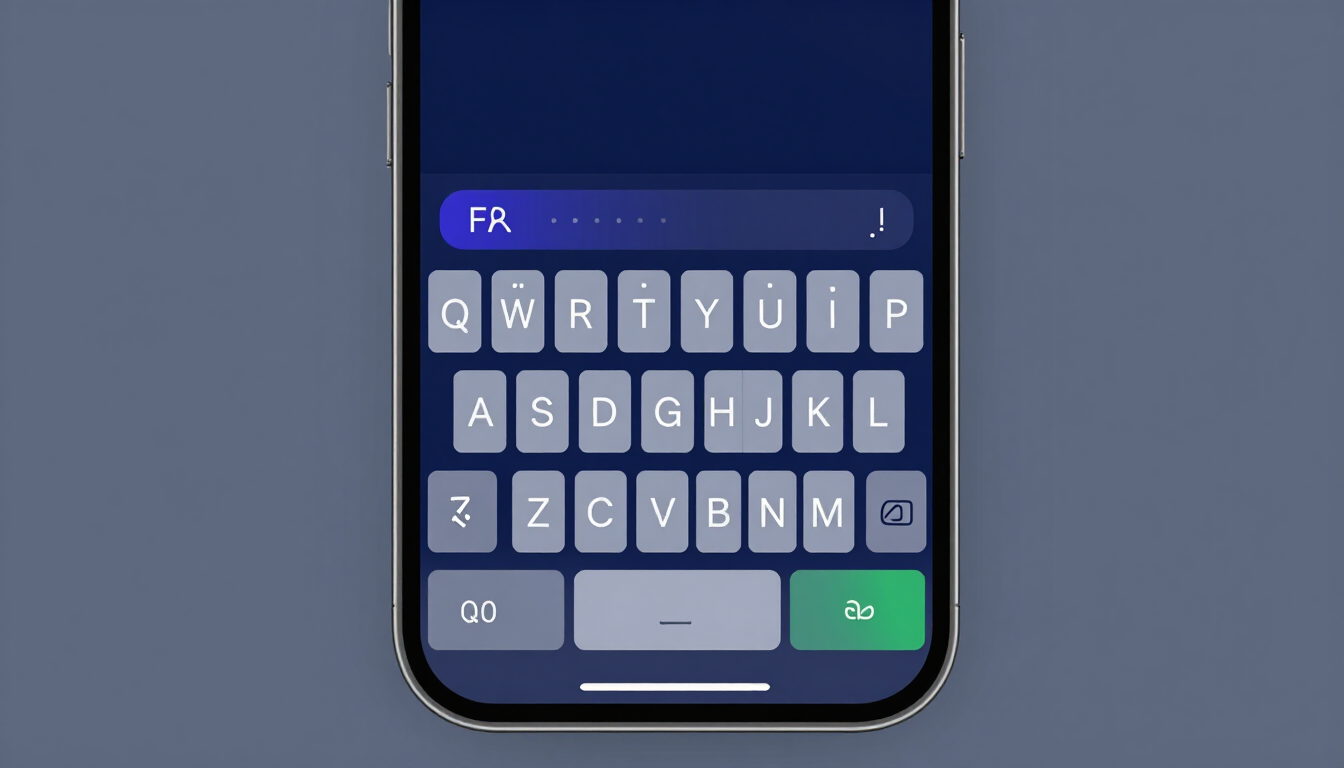
Do not use the exact examples shown. Generate your own password.
Try our Password Generator
Generate a Strong PasswordThe State of Mobile Cybersecurity in 2026
Your iPhone is your digital wallet, your photo album, and the master key to your online identity. Thieves no longer just want to sell the physical hardware. They want the data inside.
The "Shoulder Surfing" Threat
A common tactic in 2026 involves thieves watching you type your 6-digit PIN in a public place like a bar or subway. This is called shoulder surfing. Once they memorize your PIN, they steal the physical phone.
With your PIN, a thief can reset your Apple ID password, lock you out of your iCloud, and drain your bank accounts via Apple Pay in minutes.
Defeating AI and Brute-Force Attacks
If law enforcement or a malicious hacker uses professional cracking software (like Cellebrite) to unlock an iPhone, a standard 4-digit or 6-digit PIN falls quickly.
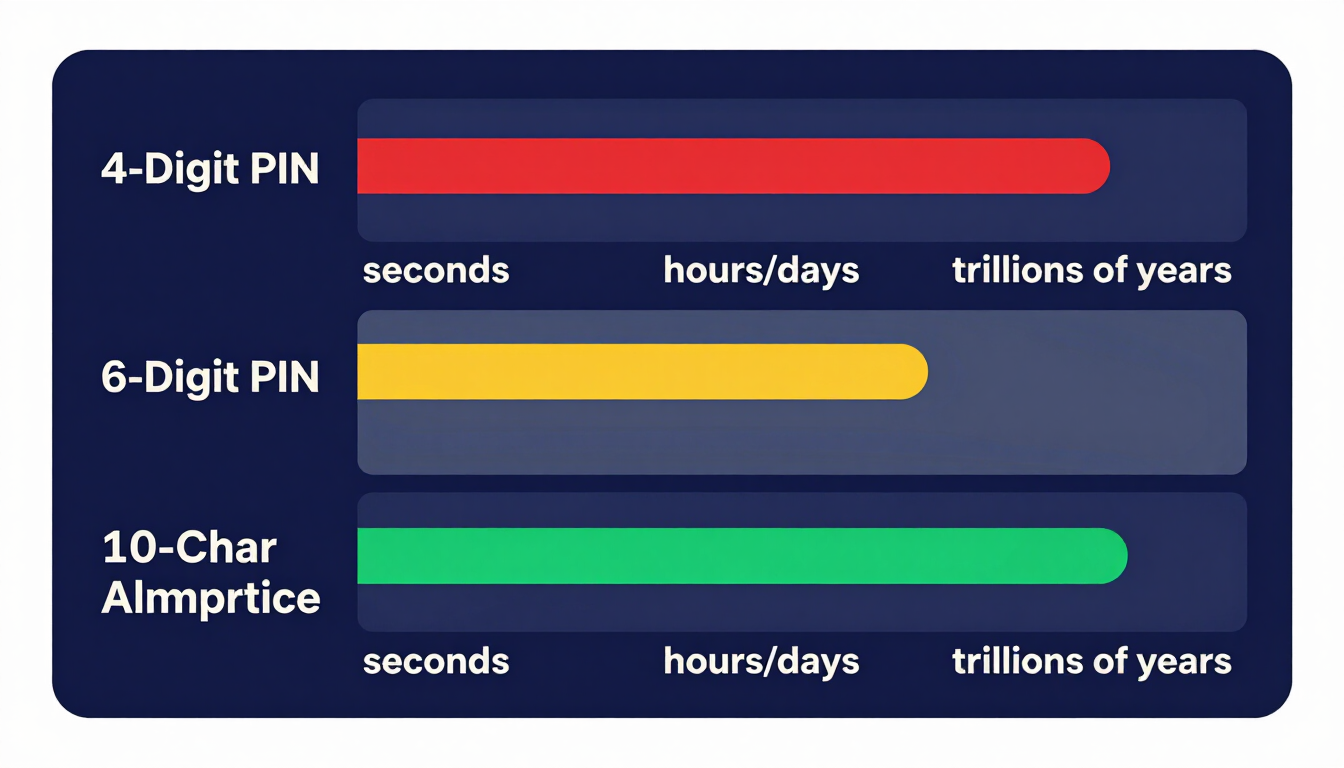
A 6-digit PIN only has one million possible combinations. A computer tests those in seconds. By switching your iPhone to a custom alphanumeric password (using letters and numbers), you increase the combinations to trillions. This renders brute-force attacks useless.
Test how fast software can crack your iPhone PIN with our Password Strength Checker Tool.
Categorized Password Ideas for iPhone
Apple gives you three choices for locking your iPhone: a 4-digit numeric code, a 6-digit numeric code, or a custom alphanumeric password.
Here is a categorized list of password ideas for iPhone, ranging from strong numeric PINs to unbreakable custom passwords. Do not copy these exactly. Use them to build your own secure lock.
Custom Alphanumeric Passwords (Maximum Security)
This is the most secure way to lock an iPhone. It brings up a full keyboard instead of a number pad. Use a short, memorable phrase mixed with numbers.
| Base Idea | Secure Variation | Why It Works |
|---|---|---|
| First Car | H0nda!99 | Fast to type with thumbs, highly secure. |
| Favorite Coffee | M0cha!26 | Short passphrase, impossible for shoulder surfers to track. |
| Gym Goal | L1ft!H3avy | Uses letters and numbers seamlessly. |
| Morning Routine | W@ke!Up77 | Replaces vowels with symbols for maximum encryption. |
Secure 6-Digit Passcode Ideas
If you refuse to use letters and insist on a number pad, you must avoid predictable patterns. Never use your birth year (e.g., 199026), repeating numbers (111111), or sequential numbers (123456).
Use spatial memorization. Draw a shape on the keypad.
- The "X" Pattern:
159357 - The "Diamond" Pattern:
248652 - The "Corners" Pattern:
137913 - Historical Dates (Not your own):
196911(Apollo 11 Moon Landing)
Why You Must Abandon 4-Digit Passcodes
A 4-digit PIN only has 10,000 possible combinations. If someone steals your phone and sees a smudge on your screen over four numbers, they can guess the correct combination in less than 24 attempts. Do not use 4-digit passcodes in 2026.
The Golden Rule: Never Reuse a Password or PIN
Reusing your iPhone PIN is a catastrophic security failure.
Many users use their iPhone unlock code as their ATM pin, their iPad unlock code, and their Voicemail password. If a thief shoulder-surfs your iPhone code, they now have access to your physical bank account.
Treat your iPhone passcode as a highly sensitive, isolated credential. It must be unique.
How to Set a Custom Alphanumeric Passcode on iPhone
Upgrading your security takes less than a minute.
- Open Settings on your iPhone.
- Scroll down and tap Face ID & Passcode (or Touch ID & Passcode).
- Enter your current numeric PIN.
- Scroll down and tap Change Passcode.
- Enter your old passcode again.
- When prompted for a new passcode, tap Passcode Options just above the number pad.
- Select Custom Alphanumeric Code.
- Type in your new secure phrase (e.g.,
M0cha!26).
Why You Absolutely Need an Encrypted Password Manager
Your iPhone holds the passwords to every app you use. Apple provides iCloud Keychain, which is excellent for basic users.
However, if you want cross-platform security, you need a dedicated encrypted password manager (like Bitwarden, 1Password, or Dashlane).
Protecting Your App Passwords
A dedicated password manager secures your app logins behind a completely different master password. If a thief steals your phone and knows your iPhone screen passcode, they can easily open iCloud Keychain. But they cannot open a third-party password manager without the master passphrase.
Use our client-side generator to build strong passwords for your apps, store them in your third-party vault, and keep them hidden from phone thieves.
Find the most secure vault for iOS with our Password Manager Guide.
The Final Layer: Enabling Apple's Stolen Device Protection
In recent iOS updates, Apple introduced a feature specifically designed to defeat shoulder-surfing thieves. You must turn it on.
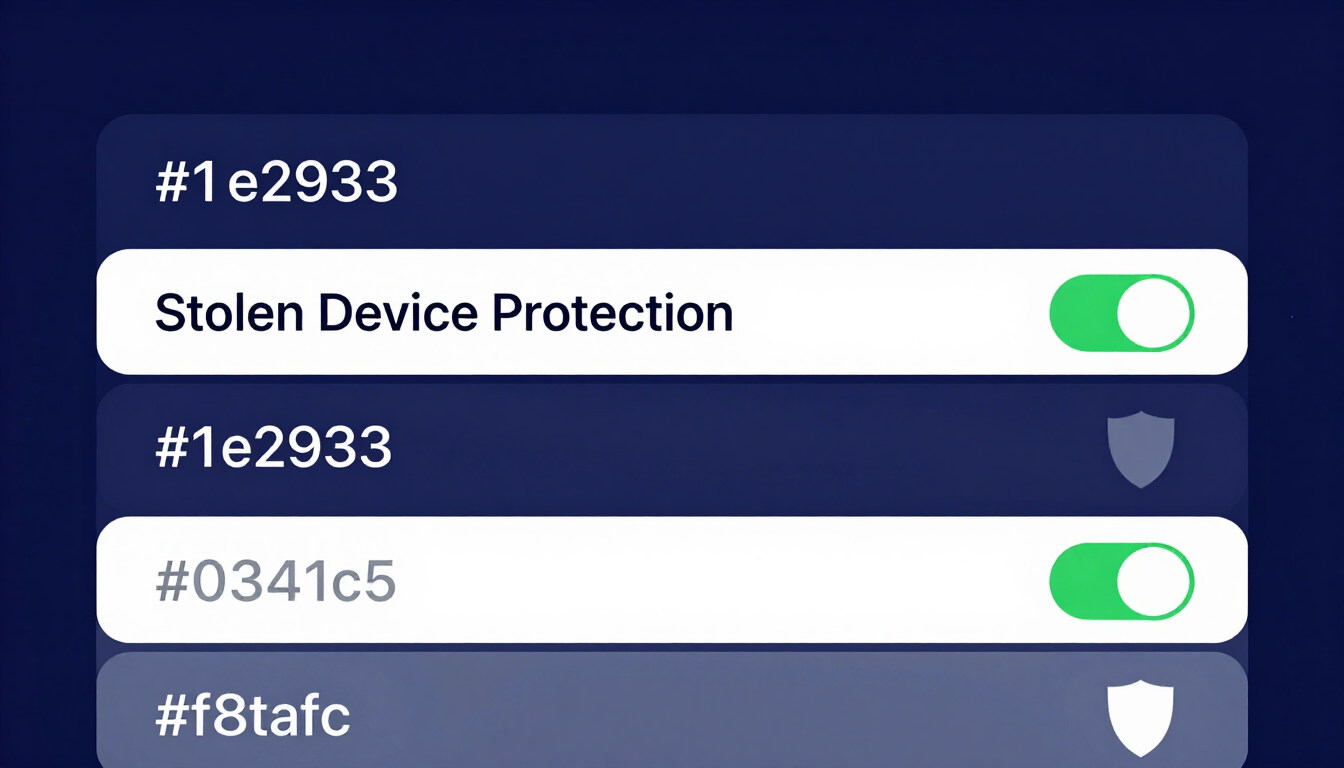
Stolen Device Protection adds a layer of security when your iPhone is away from familiar locations (like your home or work).
If a thief steals your unlocked phone and tries to change your Apple ID password or access your saved credit cards, the iPhone will demand Face ID or Touch ID. A typed passcode will not work. It also enforces a one-hour security delay before critical account changes can occur, giving you time to mark the phone as lost.
How to Turn It On
- Go to Settings.
- Tap Face ID & Passcode.
- Scroll down to Stolen Device Protection.
- Tap Turn On Protection.
Frequently Asked Questions
What are good password ideas for iPhone?
The best iPhone passwords are Custom Alphanumeric codes. Use a short, memorable combination of letters, numbers, and a symbol, such as B1ke!R1de or C0ffee99. This prevents thieves from guessing your code by watching your fingers tap a number pad.
How do I change my iPhone from numbers to letters?
Go to Settings > Face ID & Passcode. Tap Change Passcode. Before typing a new number, tap the small blue text that says "Passcode Options" and select "Custom Alphanumeric Code" from the menu.
Is Face ID safer than an alphanumeric passcode?
Face ID is highly secure and incredibly convenient, but it always requires a passcode as a backup. If your backup passcode is a weak 4-digit PIN, your phone is vulnerable. You need Face ID paired with a strong Custom Alphanumeric code.
What happens if I forget my iPhone password?
If you enter the wrong passcode too many times, your iPhone will lock you out permanently. You will have to connect it to a computer, put it in Recovery Mode, and erase the device completely. You can then restore your data from an iCloud backup.
Can hackers guess a 6-digit iPhone passcode?
Yes, if they steal the physical phone. A 6-digit PIN has only 1,000,000 combinations. Software used by law enforcement and hackers can brute-force a 6-digit PIN in hours or days, which is why alphanumeric passwords are recommended.
Why shouldn't I use my birth year as my iPhone PIN?
Because a thief will look at your driver's license inside your stolen wallet. If they steal your phone and your wallet, they will immediately try your birth year (e.g., 1985), your birth month/day (0521), and your zip code.
What is the Erase Data feature on iPhone?
It is a security setting in Face ID & Passcode. If enabled, your iPhone will automatically erase all data after 10 failed passcode attempts. This is highly recommended to protect your data from thieves trying to guess your PIN.
Does Stolen Device Protection work everywhere?
No. It is designed to activate automatically when your iPhone detects it is away from your "familiar locations," such as your home or office. In unfamiliar locations, it requires Face ID for sensitive actions and ignores the typed passcode.
Should I use iCloud Keychain or a third-party password manager?
iCloud Keychain is great if you exclusively use Apple products. However, a third-party manager (like 1Password or Bitwarden) is safer against physical phone theft because it requires a separate master password that differs from your device unlock code.
The Bottom Line
A standard 6-digit PIN leaves your iPhone exposed to shoulder-surfing thieves and brute-force tools. Switching to a Custom Alphanumeric Passcode like M0cha!26 expands your combinations to the trillions, while Stolen Device Protection forces Face ID and a one-hour delay for critical changes away from home. Build your unique passcode now with our Random Password Generator Tool, then verify its strength with the Password Strength Checker.
Try our Password Generator
Generate a Strong PasswordSources: NIST SP 800-63B Digital Identity Guidelines; OWASP Authentication Cheat Sheet.
Resources & Tools
Home Page
- Password Generator — https://createpassword.in/
Tutorials
- Security Documentation — https://createpassword.in/tutorials
Password Tools
- Password Generator — https://createpassword.in/create-password
- Password Generator — https://createpassword.in/tools/password-generator
- Password & Security Tools — https://createpassword.in/tools
- Passphrase Generator — https://createpassword.in/tools/passphrase-generator
Articles That Will Help You to Understand to Make Strong Passwords to Secure for Your Online Accounts
- The Ultimate Guide to Using a Password Generator Free — https://createpassword.in/blog/password-generator-free
- Passphrase vs Password — https://createpassword.in/blog/passphrase-vs-password
- Complete Guide to Creating Strong Password — https://createpassword.in/blog/complete-guide-strong-passwords-2026
- Passphrase vs Password: Which Is Better for Security — https://createpassword.in/blog/passphrase-vs-password-security
- 12 Character Password Generator: Free, Secure & Instant Tool — https://createpassword.in/blog/secure-12-character-password-generator


Leave a comment
Comments are moderated before appearing. Please keep it respectful and on-topic. Your email is required for verification but is never displayed publicly or shared.