
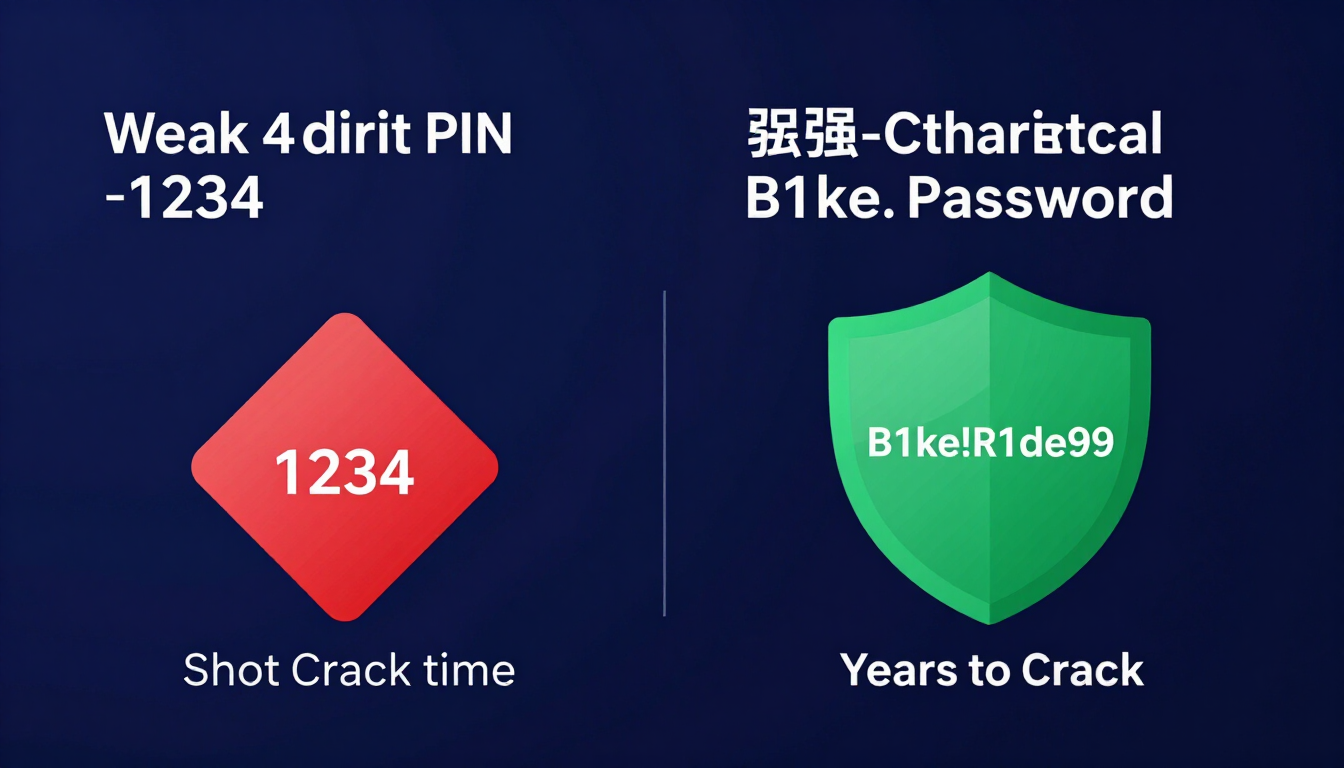
The most secure password ideas for your phone use a Custom Alphanumeric Passcode rather than a standard 4-digit PIN. Combining words, numbers, and symbols like B1ke!R1de99 creates a lock screen that completely stops thieves and shoulder-surfers. Always pair a strong passcode with biometric security to protect your banking apps and digital identity.
- Use a Custom Alphanumeric Passcode — letters, numbers, and symbols beat a 4-digit PIN against thieves and shoulder-surfers.
- Combine short words with numbers and symbols — e.g.,
B1ke!R1de99— so the lock remains fast to type with thumbs. - Avoid 4-digit PINs, birth years, and pattern locks — smudge attacks and shoulder surfing defeat them quickly.
- Never reuse your phone lock code as an ATM PIN, tablet lock, or smart door lock code.
- Pair biometrics with Stolen Device Protection (iOS) or Theft Detection (Android) so a stolen phone stays locked even if the passcode is known.
The State of Mobile Cybersecurity in 2026
Smartphones are the most frequently stolen digital devices. Thieves do not just want the hardware value of the phone. They want the financial data stored inside.
The Shoulder-Surfing Epidemic
Thieves operate in crowded public spaces like bars, concerts, and subways. They watch you type your 4-digit or 6-digit PIN from a distance. This is known as shoulder surfing.
Once they memorize your numeric PIN, they steal the physical phone. With that PIN, they unlock the device, reset your main Apple or Google account passwords, and drain your mobile banking apps. A numeric PIN is no longer enough to protect a smartphone.
The Problem with Smudge Attacks
If you use an Android pattern lock or a short PIN, the oils from your fingers leave a physical trace on the glass.
Thieves hold a stolen phone up to the light to see the smudge patterns. If they see four dots smudged, they instantly know your PIN consists of those four numbers, reducing their guessing time to seconds.
Test how fast software can crack a 6-digit PIN with our Password Strength Checker Tool.
Categorized Password Ideas for Phone
Both Android and iOS allow you to switch from a number pad to a full keyboard on your lock screen. This is called a Custom Alphanumeric Passcode. It is the absolute best way to secure your device.
Here is a categorized list of phone password ideas. Do not copy these exactly. Use these structures to build your own unbreakable mobile lock.
Fast-Typing Alphanumeric Passcodes
You unlock your phone dozens of times a day. You need a password that is secure but incredibly fast to type with your thumbs. Use short words combined with a number.
| Base Idea | Secure Variation | Why It Works |
|---|---|---|
| Morning Coffee | C0ffee!26 | Fast thumb travel, uses symbols and numbers naturally. |
| Daily Commute | Tr@in!99 | Short but utilizes a full QWERTY layout to stop shoulder surfers. |
| Fitness Goal | L1ft!N0w | Replaces vowels with numbers, easy to type one-handed. |
| Favorite Pet | D0g!W@lk | Very memorable, impossible to guess from screen smudges. |
Creative & Aesthetic Phone Passwords
Make your passcode visually appealing in your mind. This helps with memorization and encourages you to use a longer, more secure string.
- Neon Vibes:
N3on!L1ghts77 - Ocean Theme:
S@lty!W@ves99 - Rainy Day:
C0ld!R@in!26 - Deep Space:
M00n!St@r!88
Secure 6-Digit PIN Strategies
If you absolutely refuse to use a full keyboard, you must use a 6-digit PIN. Never use a 4-digit PIN. A 6-digit PIN has one million combinations, offering significantly more protection than the 10,000 combinations of a 4-digit code.
Avoid predictable numbers. Never use your birth year, your anniversary, or repeating digits like 111111.
- The Spatial Box:
137928(Draws a box and crosses the middle on the keypad) - The Zig-Zag:
153846(Moves back and forth across the rows) - Historical Dates (Not personal):
196911(The Apollo 11 Moon Landing)
The Golden Rule: Never Reuse a Password or PIN
Reusing your phone lock code is highly dangerous.
Many people use their phone PIN as their ATM card PIN, their tablet lock, and their smart door lock code. If a thief shoulder-surfs your phone code in a coffee shop, they now possess the code to your physical bank account.
Your phone lock code must be completely unique. Do not link your physical security to your digital security.
How to Use a Client-Side Password Generator Safely
You should never use a password generator to create your daily lock screen passcode because you will not be able to type it fast enough.
However, you must use a client-side password generator for the Google or Apple account linked to your phone.
- Device-Level Security: The password generates entirely on your device using JavaScript.
- No Interception: Because the data never travels over the internet, hackers cannot steal it.
- Maximum Complexity: You can instantly generate a 20-character mix of letters, numbers, and symbols to secure the core account that controls your physical phone.
Generate an unbreakable Apple or Google account password with our Random Password Generator Tool.
Why You Absolutely Need an Encrypted Password Manager
Your phone holds the passwords to every app you use.
Apple and Google provide built-in password managers. These are good, but they are often tied directly to your device passcode. If a thief steals your phone and knows your PIN, they can open your built-in keychain.
A third-party encrypted password manager (like Bitwarden or 1Password) provides an extra wall of defense.
Protecting Your App Logins
A dedicated password manager requires a completely separate master password to open. Even if a thief bypasses your phone's lock screen, they cannot open the password manager without that secondary master phrase.
Use our client-side generator to build massive passwords for your mobile apps, store them in the third-party vault, and keep your financial data hidden from physical thieves.
Find the most secure vault for mobile devices with our Password Manager Guide.
The Final Layer: Biometrics and Anti-Theft Features
A strong Custom Alphanumeric Passcode is the foundation of phone security. Biometrics and built-in anti-theft software finalize your defense.
Enable Face ID or Fingerprint Unlock
Use facial recognition or fingerprint scanning to unlock your phone 99% of the time. This completely eliminates the threat of shoulder-surfing because you never type your passcode in public. The phone will only ask for your massive alphanumeric passcode when it restarts.
Turn On Stolen Device Protection (iOS) or Theft Detection (Android)
Modern operating systems include advanced anti-theft protocols.
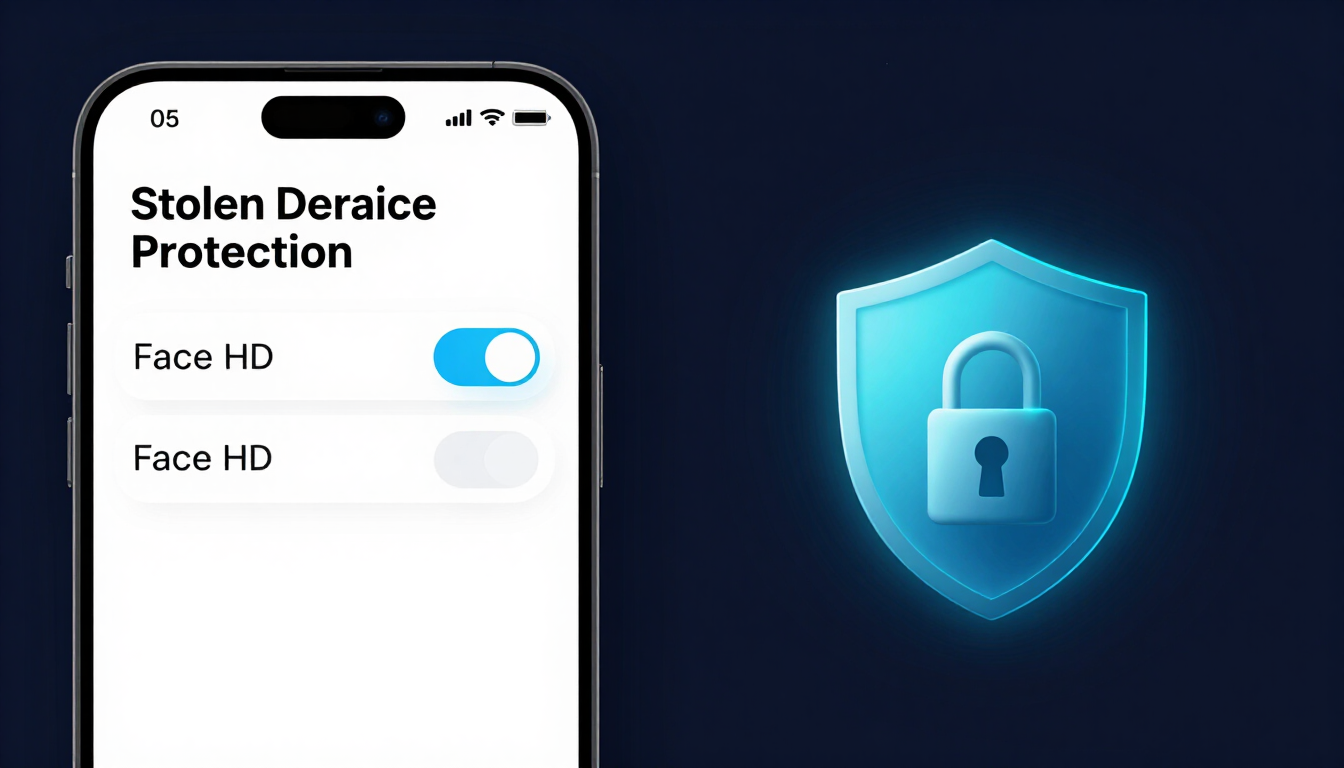
- iPhone Users: Turn on “Stolen Device Protection” in Settings. If a thief steals your phone and knows your passcode, this feature forces a Face ID scan before allowing access to Apple Pay or iCloud settings. It ignores the typed passcode entirely in unfamiliar locations.
- Android Users: Enable “Theft Detection Lock.” If the phone's sensors detect the device being snatched from your hand, the screen immediately locks, and the network connections are severed.
Frequently Asked Questions
What makes a good password for a phone?
A good phone password is a Custom Alphanumeric Passcode. It should use a mix of letters, numbers, and a symbol (e.g., B1ke!R1de). This provides vastly superior mathematical security compared to a standard 4-digit or 6-digit numeric PIN while remaining fast to type.
How do I change my phone from a number pad to a keyboard?
On iOS, go to Settings > Face ID & Passcode > Change Passcode. Tap “Passcode Options” and select “Custom Alphanumeric Code.” On Android, go to Settings > Security & Privacy > Screen Lock, and choose “Password” instead of “PIN.”
Why are pattern locks on Android unsafe?
Pattern locks are highly vulnerable to “smudge attacks.” The oils from your fingers leave a visible trail on the screen. A thief can simply tilt the phone under a light to see exactly which pattern you drew.
Can hackers bypass a phone's lock screen?
If you use a basic 4-digit PIN, law enforcement or professional hackers can use specialized software (like Cellebrite) to brute-force the passcode in a matter of hours. A Custom Alphanumeric Passcode stops these brute-force tools completely.
Is Face ID or Fingerprint unlock perfectly safe?
Biometrics are highly secure and very convenient, but they always require a backup passcode. If your backup passcode is a weak 4-digit PIN, a thief can bypass your biometrics by simply entering the weak code.
What should I do immediately if my phone is stolen?
Use another device to log into your Apple iCloud (Find My) or Google Account (Find My Device). Mark the phone as lost to lock it down completely. Next, contact your mobile carrier to deactivate the SIM card so the thief cannot intercept your 2FA text messages.
Why does my phone sometimes force me to type my passcode instead of using Face ID?
Both Android and iOS are programmed to require the physical passcode after a device restarts, after 48 hours of not being unlocked, or after multiple failed biometric attempts. This ensures you do not forget the code and prevents unauthorized access while you sleep.
Should I use my birth year for my 6-digit PIN?
Never. If a thief steals your phone and your wallet, they will look at your driver's license. They will immediately test your birth year, your birth month and day, and your zip code as their first attempts to unlock the device.
Does a strong phone password protect my photos?
It protects your photos from a physical thief holding the device. However, if your Apple ID or Google Account password is weak, a hacker can log into your cloud storage from a different computer and download your photos remotely. You must secure both the physical device and the cloud account.
The Bottom Line
A 4-digit PIN and pattern lock leave banking apps open to shoulder surfing and smudge attacks. Switch to a Custom Alphanumeric Passcode like B1ke!R1de99, keep it unique from ATM and door codes, secure your Apple or Google account with a generator-built secret in an encrypted password manager, and finish with biometrics plus Stolen Device Protection or Theft Detection. Generate a strong cloud-account password with our Random Password Generator Tool, then verify strength with the Password Strength Checker.
Resources & Tools
Home Page
- Password Generator — https://createpassword.in/
Tutorials
- Security Documentation — https://createpassword.in/tutorials
Password Tools
- Password Generator — https://createpassword.in/create-password
- Password Generator — https://createpassword.in/tools/password-generator
- Password & Security Tools — https://createpassword.in/tools
- Passphrase Generator — https://createpassword.in/tools/passphrase-generator
Articles That Will Help You to Understand to Make Strong Passwords to Secure for Your Online Accounts
- The Ultimate Guide to Using a Password Generator Free — https://createpassword.in/blog/password-generator-free
- Passphrase vs Password — https://createpassword.in/blog/passphrase-vs-password
- Complete Guide to Creating Strong Password — https://createpassword.in/blog/complete-guide-strong-passwords-2026
- Passphrase vs Password: Which Is Better for Security — https://createpassword.in/blog/passphrase-vs-password-security
- 12 Character Password Generator: Free, Secure & Instant Tool — https://createpassword.in/blog/secure-12-character-password-generator


Leave a comment
Comments are moderated before appearing. Please keep it respectful and on-topic. Your email is required for verification but is never displayed publicly or shared.