
Why Sharing Your Wi-Fi Password Out Loud Is Dead in 2026
Reading a 20-character password across a crowded living room is frustrating. Guests mistype capital letters. They confuse the number zero with the letter O.
Because typing long strings on a phone keyboard is annoying, many homeowners make a fatal mistake: they create a weak, simple password like House123 just to make it easy to say out loud.
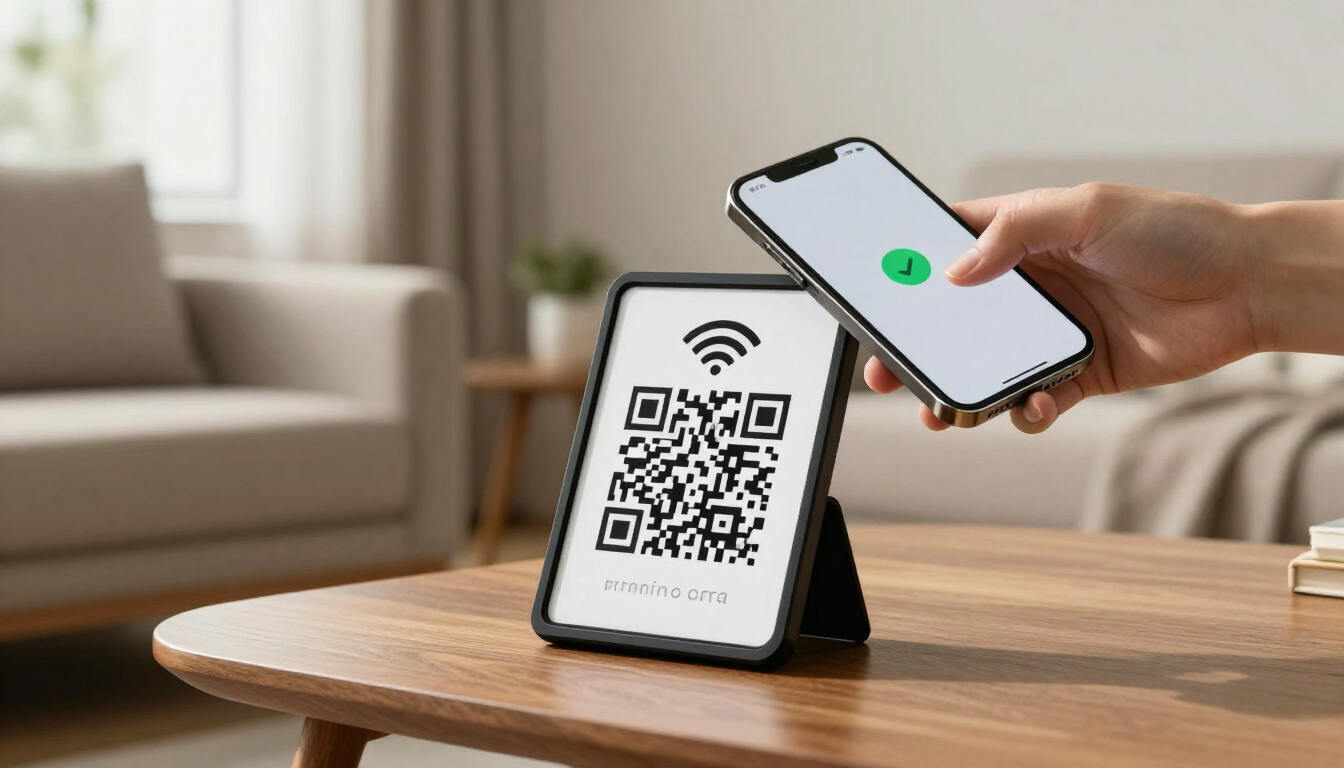
A Wi-Fi QR code fixes this problem permanently. When you use a QR code, your guests never have to type a single character. They point their smartphone camera at a printed card, tap a popup notification, and connect in one second.
This means you no longer have to sacrifice security for convenience. You can create a password that is 25 characters long, packed with random words, numbers, and symbols. Your router stays safe from hackers, while your friends get online faster than ever. Generate a 25-character guest network login right now with our client-side tool.
Step-by-Step: How to Create a Wi-Fi QR Code on Any Device
You do not need paid software or coding skills to build a Wi-Fi QR code. Modern smartphones and web browsers can build one in less than 60 seconds.
Before you start, gather three pieces of information:
- Your Network Name (SSID): This is case-sensitive.
MyHomeWiFiis completely different frommyhomewifi. - Your Encryption Type: Most modern routers use WPA3 or WPA2.
- Your Wi-Fi Password: The exact case-sensitive string used to join the network.
Method 1: Using a Client-Side Web Tool (Safest for Printing)
If you want a high-resolution image to print and frame, use a browser-based tool. Make sure the tool runs locally in your browser (client-side) so your network details are never uploaded to a mystery server.
- Open your trusted client-side QR code generator in your browser.
- Select the Wi-Fi option from the data type menu.
- Type your exact SSID (Network Name) into the first box.
- Check the Hidden Network box only if you purposely hide your router's broadcast name.
- Select WPA/WPA2/WPA3 from the security dropdown menu.
- Enter the string you chose when you decided to create a password for your guest network.
- Click Generate and download the image as a high-resolution PNG or SVG file.
Method 2: How to Create a Wi-Fi QR Code on Android
Android phones have a built-in QR generator baked right into the operating system. It works on Samsung Galaxy, Google Pixel, Motorola, and most devices running Android 10 or newer.
- Connect your Android phone to the Wi-Fi network you want to share.
- Open the Settings app.
- Tap Network & internet (or Connections on Samsung devices).
- Tap Internet or Wi-Fi.
- Tap the Gear icon next to your connected network's name.
- Tap the Share button (it looks like a tiny QR code icon).
- Verify your identity using your fingerprint, face scan, or phone PIN.
- Your phone will display a scannable QR code on the screen. Take a screenshot if you want to print it later.
Method 3: How to Create a Wi-Fi QR Code on iPhone & iPad
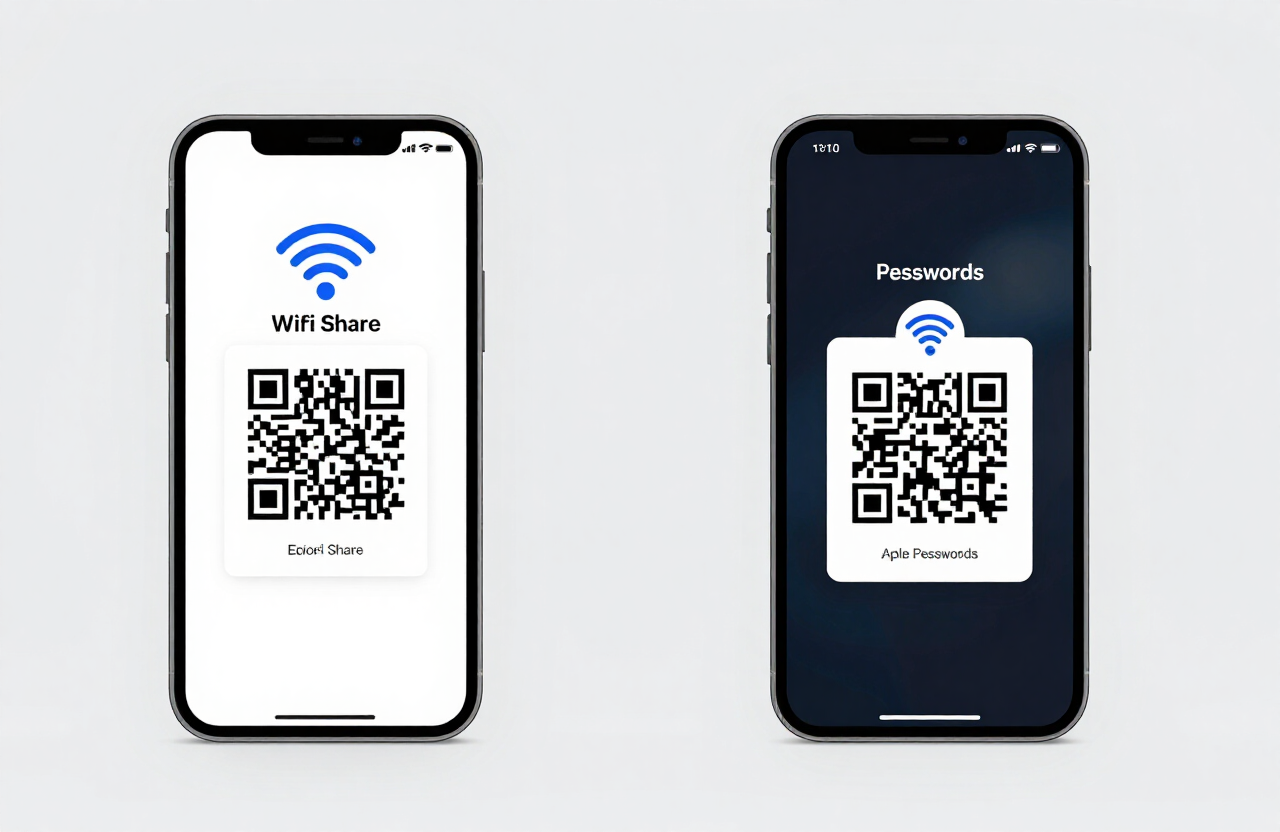
Apple made sharing Wi-Fi much easier with the dedicated Passwords app introduced in recent iOS updates. You also have the option to use the built-in Apple Shortcuts app.
Using the Apple Passwords App (Fastest)
- Open the Passwords app on your iPhone or iPad.
- Authenticate with Face ID or Touch ID.
- Tap the Wi-Fi category card.
- Select the wireless network you want to share.
- Tap Show Network QR Code.
- Have your guest point their iPhone or Android camera directly at your screen.
Using the Apple Shortcuts App (Best for Saving & Printing)
- Open the built-in Shortcuts app on your iPhone.
- Tap Gallery in the bottom right corner.
- Type QR into the search bar and select QR Your Wi-Fi.
- Tap Add Shortcut.
- Go to your Shortcuts tab and tap the QR Your Wi-Fi card.
- Confirm your network name, type your Wi-Fi password, and tap Done.
- Tap the share icon in the top right to save the crisp image to your camera roll or print it directly via AirPrint.
Method 4: Under the Hood (How the Raw Text Format Works)
If you want to build a Wi-Fi QR code using a basic, offline QR program on Windows, macOS, or Linux, you do not even need a special "Wi-Fi" template. Every Wi-Fi QR code on earth uses a simple, universal text string invented by the ZXing project:
Here is what each letter means:
- S: Your Network Name (SSID).
- T: Your Security Type (WPA covers WPA, WPA2, and WPA3).
- P: Your Wi-Fi Password.
- H: Whether the network is hidden (true or false).
For example, if your network name is GuestNet and your password is Blue!Coffee!99, you simply type this exact string into any plain-text QR maker:
Note: If your network name or password contains a semicolon ;, a colon :, a comma ,, or a backslash \, put a backslash right before that symbol so the scanner reads it properly.
Comparison of Wi-Fi QR Generation Methods
Each method trades a little convenience for a little control. Pick the one that matches how you plan to share your network.
| Generation Method | Best Use Case | Privacy Level | Can You Print It? | Time Required |
|---|---|---|---|---|
| Client-Side Web Tool | Framing for home, office, or Airbnb | Maximum (No server upload) | Yes (High-Res PNG/SVG) | 30 Seconds |
| Android Settings | Quick screen-to-screen sharing | Maximum (Local OS) | Yes (Via Screenshot) | 10 Seconds |
| Apple Passwords App | Instant sharing from iPhone | Maximum (Local iOS) | Yes (Via Screenshot) | 10 Seconds |
| Apple Shortcuts | Saving clean images on iOS | Maximum (Local iOS) | Yes (Direct AirPrint) | 45 Seconds |
| Raw ZXing Text String | Offline desktop generation | Maximum (100% Offline) | Yes | 60 Seconds |
Before You Scan: How to Create a Password for Your Wi-Fi Network
A QR code makes logging in effortless. However, it does not magically make a weak network secure. Before you generate your code, you must set up a separate Guest Network on your router and create a password that hackers cannot break.
Because nobody has to type this password by hand anymore, you can make it long, creative, and mathematically unbreakable. Here is a categorized list of ideas to help you create a password for your wireless network. Do not copy these exact examples. Use them as templates to build your own unique login.
Funny Ideas to Create a Password With a Laugh
Even if guests scan a QR code, their phone settings might still display the password text, or a laptop user might ask to type it in manually. Give them a good laugh while keeping your entropy high.
| Base Joke | Secure 15+ Character Version | Why It Beats Hackers |
|---|---|---|
| Tell My Wi-Fi Love Her | T3ll!My!W1F1!L0ve!H3r | 21 characters, swaps vowels for numbers, uses symbols. |
| Yell Penis for Password | Y3ll!L0udly!F0r!W1F1!99 | 23 characters, impossible for dictionary bots to predict. |
| FBI Surveillance Van | FB1!V@n!0utside!D00r77 | Mixes uppercase, lowercase, numbers, and exclamation marks. |
| Mom Use That One | M0m!Sc@n!Th3!C0de!N0w | Uses natural action words separated by strong punctuation. |
| Hide Yo Kids Hide Yo Wi-Fi | H1de!Y0!K1ds!H1de!W1F1 | Exceeds 20 characters, breaks normal English spelling rules. |
Cute Ideas to Create a Password for Welcoming Homes
If you host family gatherings or run a cozy bed-and-breakfast, you want a friendly vibe. Combine sweet, welcoming words into a long passphrase.
- Puppy Theme:
Flffy!G0lden!Pppy!P@ws99 - Cozy Baking:
W@rm!C1nnamon!R0lls!2026 - Sunny Garden:
Y3llow!Sunfl0wer!B33s!77 - Tea Party:
H0ney!Ch@momile!T3a!Cup* - Kitten Naps:
Sl33py!K1tten!Purrs!L0ud
Aesthetic Ideas to Create a Password With Style
Match your digital security to your interior design. String together visual, atmospheric words to create a password that looks great and blocks brute-force tools.
- Golden Hour:
G0lden!H0ur!Sunset!Gl0w88 - Matcha Cafe:
Ic3d!M@tcha!0at!L@tte26 - Rainy Reading:
V3lvet!C0uch!R@iny!B00k! - Midnight Sky:
St@rlight!M00n!D33p!Blck - Ocean Breeze:
S@lty!W@ves!Dr1ft!W00d99
Geeky & Pop-Culture Ideas to Create a Password
Show off your favorite fandoms while maintaining enterprise-grade network security.
- Sci-Fi Warp:
M1llennium!F@lcon!Jmp!99 - Fantasy Realm:
Y0u!Sh@ll!N0t!P@ss!W1F1 - Retro Gaming:
Up!Up!D0wn!D0wn!L3ft!Rght - Cyberpunk Vibe:
N3on!S@murai!M@trix!2026 - Comic Book:
Fr1endly!Sp1der!W3b!Net*
Cafe, Airbnb & Small Business Ideas to Create a Password
If you run a business or short-term rental, your Wi-Fi passphrase can subtly reinforce your brand or remind guests of house rules.
- Airbnb Checkout:
Ch3ck!0ut!Is!@t!11AM!Thx - Five Star Review:
Pl3ase!L3ave!5!St@rs!26 - Coffee Shop Upsell:
Try!0ur!Blub3rry!Muff1n! - Salon & Spa:
R3lax!Unw1nd!Gl0w!Up!99 - Boutique Gym:
L1ft!H3avy!R3st!W3ll!77
High-Entropy Word-Based Passphrases (The NIST Standard)
The National Institute of Standards and Technology (NIST) Special Publication 800-63B sets the global rules for digital security. NIST states that length is far more important than weird symbols. To create a password with maximum mathematical strength, string together four to five completely unrelated dictionary words.
- Example 1:
Cactus-Velvet-Rocket-Toaster-42 - Example 2:
Violin!Glacier!Pretzel!Hammer!99 - Example 3:
Lantern#Dolphin#Marble#Compass#77 - Example 4:
AnchorFeatherVolcanoBiscuit26
Want proof your login holds up? Check the mathematical entropy of your Wi-Fi login with our client-side strength checker. For more ready-to-adapt logins, browse our curated guest network password ideas.
The State of Cybersecurity in 2026
Your wireless router is the front door to your digital life. Every laptop, phone, smart TV, and security camera in your home talks to this single box. Hackers no longer sit in vans for days trying to manually guess your login. They use automated, high-speed attack methods.
Credential Stuffing on Routers and Cloud Accounts
Credential stuffing happens when cybercriminals take billions of leaked usernames and passwords from past data breaches and feed them into automated bots. Modern mesh Wi-Fi systems (like Eero, Google Nest, TP-Link Deco, and Netgear Orbi) are controlled through cloud accounts on your smartphone.
If you use the same email and password for your router app that you used on a breached shopping site, hackers do not need to be anywhere near your house. They log into your router's cloud portal from across the world, view your network settings, and hijack your DNS traffic. See whether your logins have already leaked using our Data Breach Checker.
AI Brute-Forcing and Wardriving 2.0
In 2026, hackers capture a tiny piece of data called a "4-way handshake" from your Wi-Fi signal right from the street. They take that captured handshake home and feed it into a computer packed with high-end graphics cards running artificial intelligence cracking tools (like PassGAN and Hashcat).
AI models are trained on hundreds of millions of real human passwords. They know humans love to use:
- Street names and house numbers.
- Family last names followed by the current year.
- Phone numbers and pet names.
- Simple letter-to-number swaps like
P@ssw0rd1.
An AI rig can test over 100 billion password guesses per second against an older WPA2 handshake. If your password is 8 characters long, it falls in minutes. If you create a password that is 16 to 20 characters long, it takes trillions of years to crack.
The Rise of "Quishing" and Evil Twin Attacks
Because QR codes are everywhere in 2026, a new threat called Quishing (QR Code Phishing) has exploded. In cafes, airports, and even Airbnb rentals, scammers print malicious QR code stickers and paste them right over the real Wi-Fi QR code sign. When you scan the fake code, one of two things happens:
- Malicious Website Redirect: Instead of connecting to Wi-Fi, the QR code sends your browser to a fake login page asking for your Google, Apple, or credit card details.
- The Evil Twin Network: The QR code connects your phone to a hacker's portable hotspot sitting in a backpack nearby. Once connected, the hacker intercepts your unencrypted web traffic.
Always check your printed QR codes in public or rental spaces to ensure nobody has placed a sticker over your original sign.
How Fast Can AI Crack Your Wi-Fi Password in 2026?
Length is the single biggest factor that decides whether your Wi-Fi survives an offline attack. WPA3's SAE (Dragonblood) handshake adds another layer by blocking the offline handshake capture that older WPA2 networks allow.
| Password Length & Structure | Example | WPA2 Offline Cracking Time (AI GPU Rig) | WPA3 Protection Status (SAE Dragonblood Defense) |
|---|---|---|---|
| 8 Characters (Numbers Only) | 55512345 | Instant (Less than 1 second) | Vulnerable to online dictionary guessing |
| 8 Characters (Standard Word + Number) | Summer26 | 3 Seconds | Vulnerable if on common wordlists |
| 10 Characters (Complex Human Pattern) | MyHouse26! | 4 Hours | Moderate (Blocks offline handshake capture) |
| 15 Characters (3-Word Passphrase) | Blue!Coffee!99! | 45,000+ Years | Bulletproof |
| 20+ Characters (4-Word Passphrase) | Cactus-Velvet-Run-88 | Billions of Years | Mathematically Unbreakable |
The Golden Rule: Never Reuse a Password
The number one rule of cybersecurity is simple: One account, one unique password. This rule is doubly important when you create a Wi-Fi QR code.
The Danger of Reusing Personal Passwords on Your Router
Imagine you use your favorite password—say, SunnyDay1988!—for your email, your Amazon account, and your home Wi-Fi. You turn that password into a QR code and tape it to your refrigerator.
During a party, twenty people scan the code. A delivery driver sees it through the kitchen window. A dog walker scans it while you are at work. Every single one of those people now holds the exact plain-text password to your personal email and banking accounts. Never reuse a personal password for your Wi-Fi.
The 3-Network Rule for Ultimate Home Security
To protect your home in 2026, divide your router into three separate zones, each with its own unique password:
- Your Primary Network: Used only for your personal laptops, smartphones, and work computers. Never turn this into a public QR code.
- Your Guest Network: Turn on "Client Isolation" in your router settings. Create a unique passphrase and turn only this network into a QR code for visitors. Guests get fast internet, but they are completely blocked from seeing your personal computers or shared files.
- Your IoT (Smart Home) Network: Used for smart TVs, cheap smart plugs, robot vacuums, and security cameras. If a cheap smart lightbulb gets hacked, the attacker is trapped on the IoT network and cannot touch your laptop.
Learn how to audit all your home logins in our password security best-practices guide.
How to Use a Client-Side Password Generator Safely
Humans are terrible at being random. When we try to create a password in our heads, we rely on muscle memory on the keyboard or words from our surroundings. To get true randomness, you need a password generator. However, not all generators are safe.
Server-Side vs. Client-Side Generators
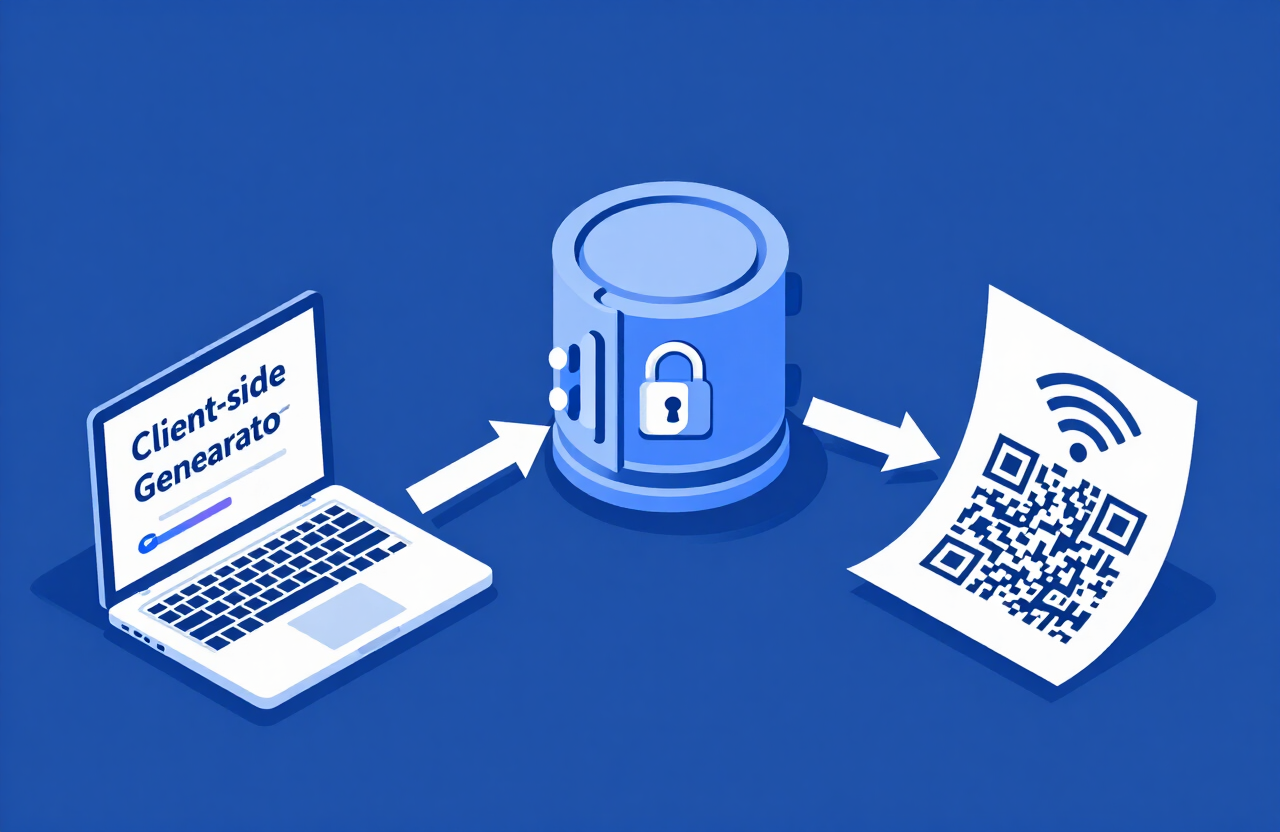
When you use an outdated server-side website, their central computer creates the password and sends it across the internet to your screen. That means the website owner—or a hacker tapping into their server—can log your password and IP address.
A client-side password generator works completely differently:
- You load our webpage in your browser.
- The code runs 100% locally inside your own phone or computer's memory using your browser's built-in cryptographic chip (
window.crypto.getRandomValues). - Zero Data Leaves Your Device: The password you generate is never sent over the internet, never touches our servers, and vanishes the moment you close the tab.
Pro Tip: You can prove a tool is client-side by loading the page, turning your phone on Airplane Mode, and clicking "Generate." It will still work perfectly without an internet connection.
Creating Your Two Essential Router Passwords
When setting up your home Wi-Fi and QR code, use our client-side generator twice:
- Step 1 — The Router Admin Password: This is the password that opens your router's control panel (like 192.168.1.1). Set the generator to 24 random characters with uppercase, lowercase, numbers, and symbols (e.g.,
k9#mP2$vL8@nQ5!xR7*bC4&z). Save this in your password manager. - Step 2 — The Guest Wi-Fi Password: Set the generator to create a 4-word passphrase or a 16-character random string. Plug this directly into your Guest Wi-Fi settings and your QR code maker.
Create a 100% private client-side password now with our Random Password Generator.
Why You Absolutely Need an Encrypted Password Manager
Once you stop reusing passwords and start using 20-character strings, you face a new problem: human memory. Nobody can memorize 150 unique, 20-character passwords for their router admin panel, three Wi-Fi networks, bank accounts, and work apps.
An encrypted password manager (like Bitwarden, 1Password, or Proton Pass) is your digital safe.
How Password Managers Protect Your Network Details
A password manager uses Zero-Knowledge AES-256 Encryption. It locks all your data behind one single "Master Password" that only you know. Inside your password manager, you can create a dedicated secure entry for your home router that holds:
- Your Router Admin URL (
http://192.168.1.1orhttp://10.0.0.1). - Your 24-character Router Admin login.
- Your Primary Wi-Fi SSID and password.
- Your Guest Wi-Fi SSID and password.
- Your ISP account number and support PIN.
- A digital copy of your Wi-Fi QR code attached to the entry.
How Our Tools Work With Your Password Manager
Our suite of client-side tools pairs seamlessly with any encrypted vault:
- Open our Random Password Generator or Passphrase Generator to craft a high-entropy login with custom rules.
- Click the Copy button.
- Paste the new credential straight into your Password Manager's vault and your router's settings page.
- Use our Password Strength Checker to verify that your Master Password has at least 65 bits of entropy.
When you buy a new laptop or phone, you install your password manager app, unlock it once, and all your Wi-Fi credentials sync instantly across every device you own. Compare the top zero-knowledge vaults of 2026 in our password manager guide.
The Final Layer: Setting Up Multi-Factor Authentication (MFA)
Even the strongest password in the world can fail if a scammer tricks you into typing it on a fake phishing page, or if malware infects your computer. Multi-Factor Authentication (MFA)—often called Two-Factor Authentication (2FA)—is the final lock on your door.
Locking Down Your Router's Cloud Account
In 2026, almost every major router brand links your home network to a mobile app and an online cloud account. If a hacker breaks into your TP-Link, Netgear, Asus, or Amazon Eero cloud account, they control your entire home network remotely. You must turn on MFA inside your router's companion app immediately.
Ranking MFA Methods from Weakest to Strongest
Not all MFA is created equal. Choose the strongest option your router and email provider support:
- Hardware Security Keys (FIDO2 / YubiKey) — Best: A physical USB or NFC key you tap against your phone or laptop. It is 100% immune to remote phishing attacks. Use this to lock down your primary email and password manager.
- Authenticator Apps (TOTP) — Excellent: Apps like Ente Auth, 2FAS, Google Authenticator, or Authy generate a changing 6-digit code every 30 seconds right on your phone. The codes work offline and cannot be intercepted over cell towers.
- SMS Text Messages — Basic: Receiving a code via text message is far better than having no MFA at all. However, hackers can hijack text messages using SIM-swapping scams. Upgrade from SMS to an Authenticator App whenever possible.
Essential Router Hardening Checklist
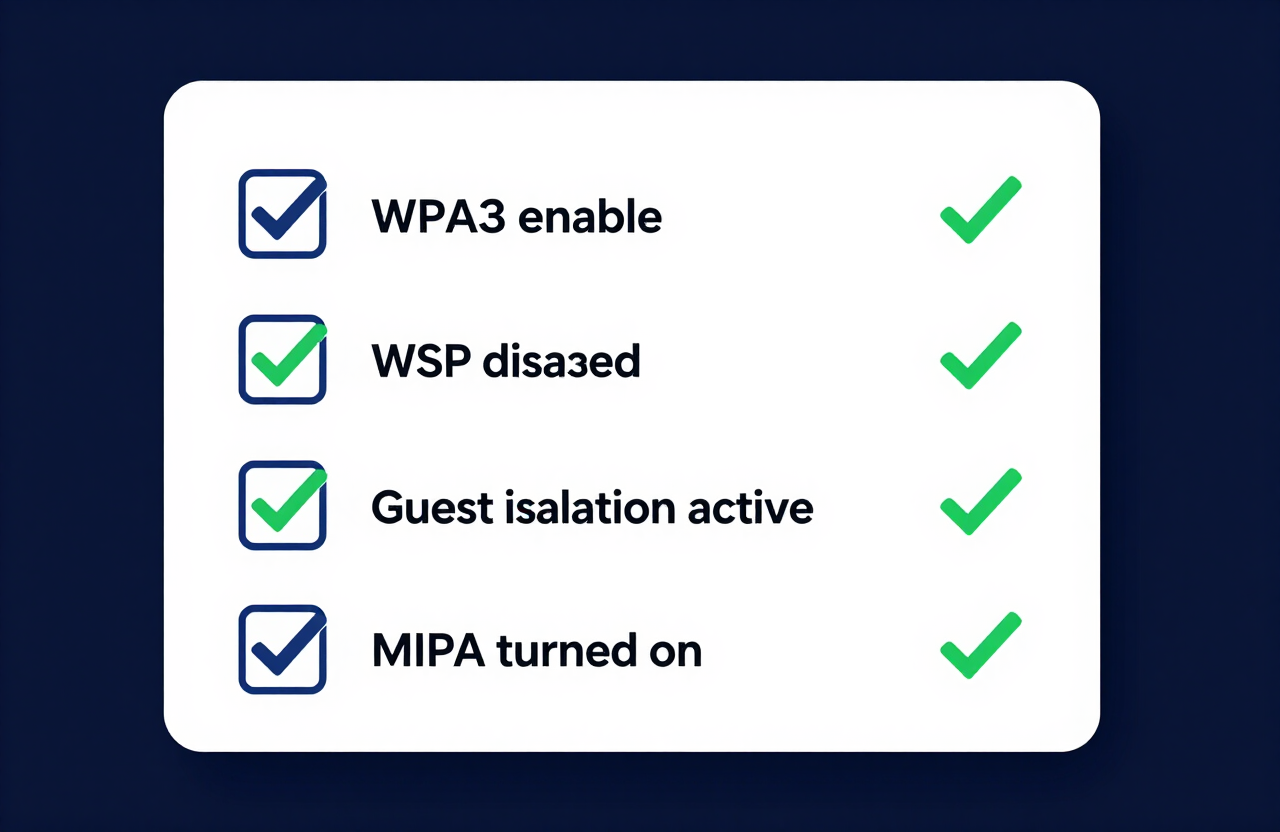
Along with enabling MFA and setting a strong password, check these four settings inside your router panel today:
- Turn on WPA3 Encryption: Select WPA3-Personal (or WPA2/WPA3 Transitional if you own older smart devices that cannot connect to pure WPA3). Never use WEP or old WPA.
- Disable WPS (Wi-Fi Protected Setup): WPS is a physical button and an 8-digit PIN system on routers. Hackers can brute-force the 8-digit WPS PIN in hours and bypass your 20-character password completely. Turn WPS Off.
- Turn On Automatic Firmware Updates: Router manufacturers constantly patch security holes. Let your router update itself automatically overnight.
- Disable Remote Management (WAN Access): Unless you use a secure, MFA-protected cloud app, make sure nobody can access your router's IP login page from the public internet.
Creative & Safe Ways to Display Your Wi-Fi QR Code
Once you generate and print your Guest Wi-Fi QR code, how you display it matters for both convenience and physical security.
Smart Display Ideas for Homes and Hosts
- Mini Acrylic Photo Frame: Put a 4x6-inch printed card in a clear acrylic frame on the entryway table or guest nightstand.
- Refrigerator Magnet: Print the QR code on magnetic paper and stick it to the fridge in the kitchen.
- Coasters & Acrylic Signs: Laser-etch the QR code onto a wooden coaster or a small acrylic stand for your coffee table.
- Inside a Welcome Binder: If you host an Airbnb or Vrbo, place the QR code inside the front cover of your house rules binder.
Physical Security Rule: Watch Your Line of Sight!
Never place your Wi-Fi QR code where someone outside your property can scan it. Modern smartphone cameras have incredible optical zoom lenses. If you tape a giant Wi-Fi QR code to a wall facing a front window, a stranger standing on the sidewalk 30 feet away can zoom in with their phone, scan your code, and join your network from the street.
Keep your QR code away from windows, glass front doors, and public zoom cameras (remember not to accidentally hold it up on a Zoom or Teams video call!).
Troubleshooting: Why Won't My Wi-Fi QR Code Scan?
If you generated your code and your phone refuses to connect, check these five common mistakes:
- Case Sensitivity Mismatch: Wi-Fi network names (SSIDs) and passwords are strictly case-sensitive. If your router broadcasts
SmithFamily_5Gand you typedsmithfamily_5ginto the QR generator, the connection will fail every time. - Wrong Security Type Selected: If your router uses WPA2/WPA3 and you accidentally selected WEP or None in the QR generator, your phone will reject the handshake. Always select WPA/WPA2/WPA3.
- Inverted Colors (Light Code on a Dark Background): Many phone cameras struggle to scan "inverted" QR codes (white squares on a black background). Always print your QR code with dark black or deep navy squares on a crisp white background for instant scanning.
- Glossy Laminate or Glass Glare: If you put your printed QR code behind cheap, shiny glass right under a bright ceiling light, the glare will blind your guest's phone camera. Use matte paper or non-glare acrylic frames.
- What Happens When I Change My Wi-Fi Password? Standard Wi-Fi QR codes are static. The password is permanently baked into the pattern of black and white squares. If you change your guest Wi-Fi password on your router, your old printed QR code will stop working immediately. You will need to generate and print a fresh code.
Resources & Tools
Password Tools
- Random Password Generator — create a 25-character guest login client-side
- Passphrase Generator — build a 4-word NIST-style passphrase
- Password Strength Checker — verify your Wi-Fi login's entropy
- QR Code Generator — turn your SSID and password into a printable code
- Data Breach Checker — check if your router cloud login has leaked
Related Guides
- Best Wi-Fi Passwords: Strong Guest Network Ideas
- How to Create a Password: The Definitive 2026 Guide
- The Complete Guide to Creating Strong Passwords in 2026
- Password Security Best Practices (2026 Guide)
- Our Security Methodology

Leave a comment
Comments are moderated before appearing. Please keep it respectful and on-topic. Your email is required for verification but is never displayed publicly or shared.