
To password protect a PDF without Adobe, use Microsoft Word, Mac Preview, or LibreOffice. Choose the encrypt option when you save or export, then set an open password. A free browser tool or the qpdf command also works. Use a random password of at least 12 characters.
You do not need Adobe Acrobat Pro to lock a PDF. Your computer and a few free tools can do it in under two minutes.
But the lock is only as strong as the password. Most guides skip that part. This guide covers both: how to add the password, and how to choose one that holds up.
In this guide:
- The fastest method for Windows, Mac, Linux and phones
- What “open password” and “owner password” mean
- How to create a strong PDF password (and never reuse one)
- Step-by-step instructions for seven free methods
- How to share a locked PDF without leaking the password
- The mistakes that make a locked PDF easy to open
Quick Answer: Which Method Should You Use?
Pick the row that matches your situation.
| Your situation | Best method | Layout risk | File leaves your device? |
|---|---|---|---|
| You are writing the document in Word | Word “Save As PDF” with encryption | None | No |
| You have a finished PDF on a Mac | Preview → Export → Encrypt | None | No |
| You have a finished PDF on Windows | Browser-based tool, or qpdf | None | Depends on the tool |
| You use free office software | LibreOffice export with Security tab | Low | No |
| You handle many files | qpdf or Python script | None | No |
| You are on a phone | Browser-based tool | None | Depends on the tool |
Layout risk means the chance that fonts, images or spacing change. Methods that only add encryption to an existing file do not change the pages. Methods that re-create the file from another format can.
Lock a finished PDF in the browser with the PDF Password Protector.
Why Lock a PDF in 2026?
A PDF often holds the most sensitive things you own: bank statements, tax returns, ID scans, contracts, medical reports. It gets emailed, uploaded, forwarded and saved to shared drives. Each copy is a new place for it to leak.
A password adds a barrier. If someone opens your email, a shared folder or a lost laptop, they still cannot read the file.
The threat picture today
Attackers rarely “hack” a strong lock. They look for easy doors.
Reused passwords. In credential stuffing, criminals take passwords leaked from one site and try them on others. The method depends entirely on people reusing the same password. If your PDF password matches your email password, one old breach can open both.
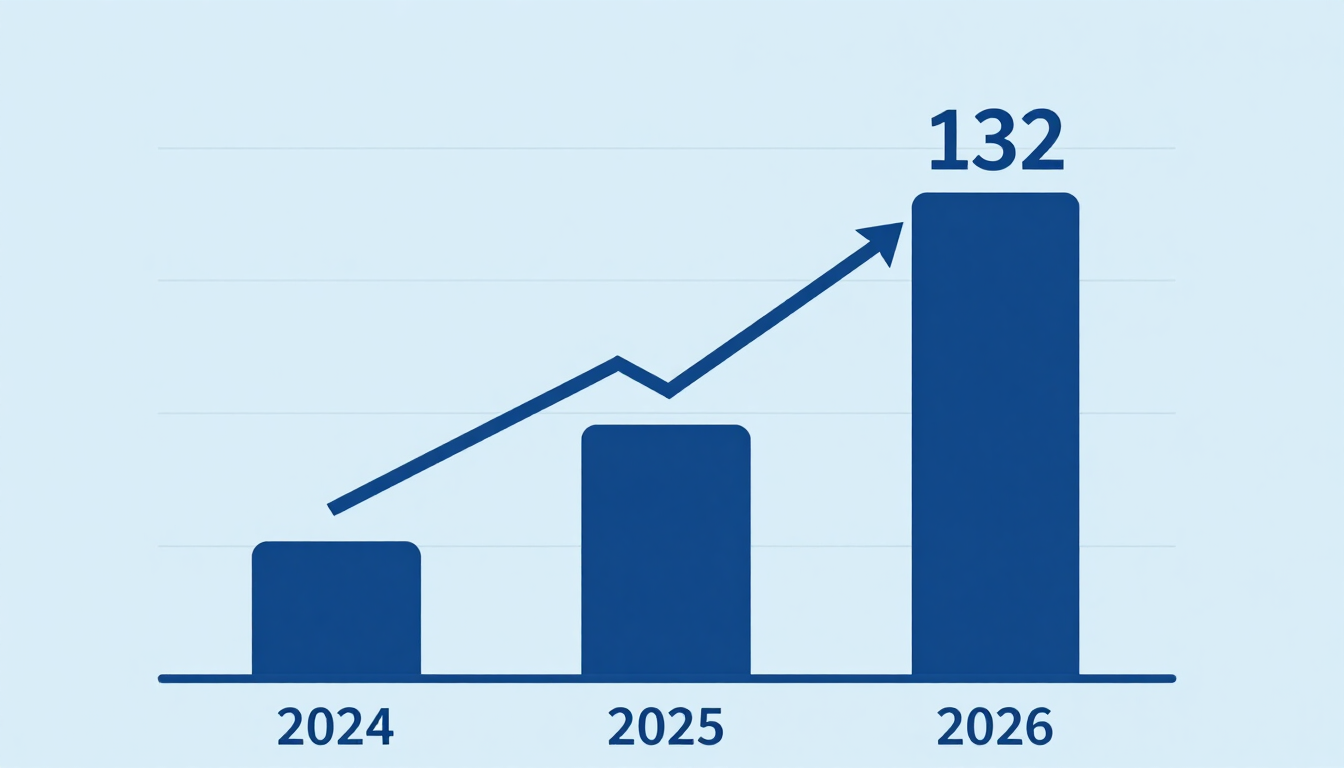
Faster guessing hardware. Hive Systems publishes an annual table of brute-force times. Its figures for a random eight-character password using all character types fell from 225 years in 2024 to 164 in 2025 and 132 in 2026. Length still wins, but the trend is downward every year.
AI, in a smaller role than headlines suggest. Hive says chips built for AI hold no special advantage at password cracking. The bigger effect is that AI tools have become better at finding software flaws, which gives attackers faster ways to reach password databases.
The lesson for PDFs: a locked file can be attacked offline. Anyone who copies your file can try guesses on their own computer, with no lockout and no limit. That is why your password matters more than the tool you use to add it.
What a PDF password does not do
Be clear about the limits:
- It does not stop someone you gave the password to from sharing it.
- It does not hide the file name, size or the fact that a file exists.
- It does not protect the file after the reader opens and saves an unlocked copy.
- It does not fix a weak password.
PDF Passwords Explained: Open vs Owner
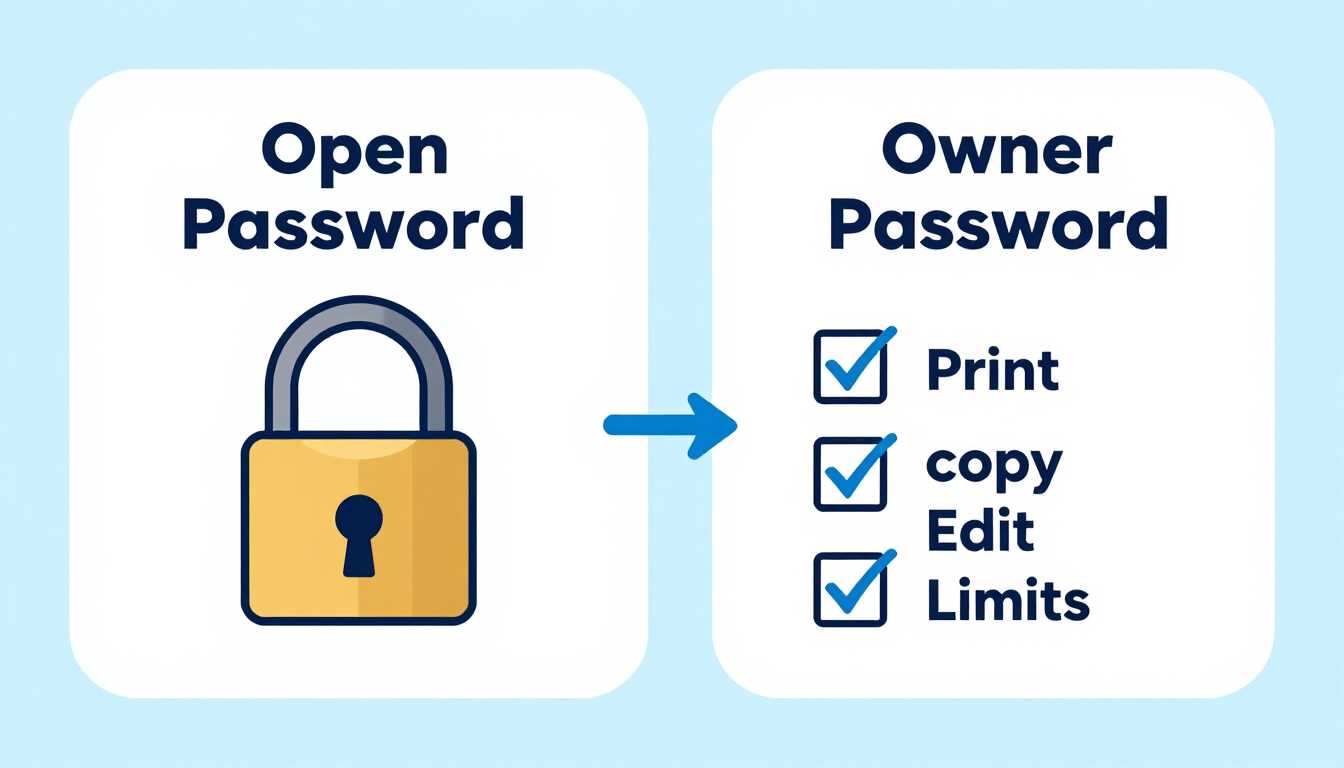
PDFs support two kinds of passwords. Mixing them up is the most common mistake.
Open password (also called user password)
This password is needed to open the file. It also drives the encryption, so the content is scrambled without it. When you want privacy, set this one.
Owner password (also called permissions password)
This password controls what people can do after opening: print, copy text, edit or fill forms. It is a set of instructions that PDF viewers agree to follow. Some software ignores them, and free tools can strip them.
Rule: if the goal is secrecy, always set an open password. An owner password alone is a “please don’t” sign, not a lock.
Encryption levels
The strength of the lock also depends on the encryption method the tool uses.
| Encryption | Typical PDF version | Verdict |
|---|---|---|
| RC4 40-bit | PDF 1.1–1.3 | Broken. Avoid. |
| RC4 128-bit | PDF 1.4 | Outdated. Avoid if you can. |
| AES-128 | PDF 1.6 | Acceptable with a strong password |
| AES-256 | PDF 1.7 extension / PDF 2.0 | Best choice. Use when offered. |
Not every tool tells you which level it uses. If a tool offers a choice, pick AES-256. If it offers RC4, pick something else.
Step 1: Create a Strong PDF Password First
Do this before you touch any PDF tool. A weak password on a strong lock is still weak.
Rule 1: Never reuse a password
Your PDF password must be unique. Do not use your email, banking or phone-unlock password. If a reused password leaks anywhere, attackers try it everywhere.
Security agencies give the same advice. US-CERT recommends different passwords on different accounts and multi-factor authentication where available.
Rule 2: Go long, not fancy
Length adds strength faster than symbols. The Canadian Centre for Cyber Security recommends at least 12 characters for passwords. For a PDF that holds ID numbers or financial data, use 14 to 16.
NIST’s current guidance also moved away from forced complexity tricks. SP 800-63B Rev 4 bans forced password rotation and composition rules. In plain words: stop making people add “@” and “1” to a short word.
Rule 3: Make it random
Humans are bad at random. We pick names, dates and patterns, and attackers try those first.
Here is what random looks like in numbers:
| Password type | Example style | Approx. strength |
|---|---|---|
| 8 random characters (all types) | k9#Tq2!v | ~52 bits |
| 12 random letters and digits | x7Kd92LmQ4pA | ~71 bits |
| 12 random characters (all types) | t#9Lq!2mZ@x8 | ~79 bits |
| 16 random letters and digits | mB4x9KqL2vRt7Wds | ~95 bits |
| 4 random words | pilot-cactus-meter-blue | ~52 bits |
| 6 random words | pilot-cactus-meter-blue-tunnel-frost | ~77 bits |
The “bits” figure counts how many guesses an attacker needs. Every extra bit doubles the work. These numbers only apply if the password is truly random, not if you pick it yourself.
Rule 4: Use a passphrase if you must remember it
A passphrase is several random words joined together. It is longer and easier to type than a symbol jumble.
The Diceware method is the classic version. Each word from a 7,776-word list adds about 12.9 bits, and its creator now suggests at least six words, about 77.5 bits.
Choose a passphrase when you need to say the password aloud or type it on a phone. Choose a random string when a password manager will store it.
Build one with the Passphrase Generator.
Rule 5: Skip the “Indian document” pattern
Many Indian banks, employers and government portals send PDFs locked with passwords built from a name plus a birth date, PAN or phone number. For example, UIDAI’s e-Aadhaar uses a name-and-birth-year pattern. Confirm the current UIDAI rule before you rely on that example.
That pattern is meant to keep casual eyes out, not to stop a determined attacker. Anyone who knows or can find your name and birth year can guess it. Never copy this pattern for your own files.
How to use a client-side generator safely
A password generator is only safe if it builds the password on your device.
A well-built generator runs in your browser and uses the built-in crypto.getRandomValues() function, so no password is sent to a server.
You can check this yourself in 30 seconds:
- Open the generator page.
- Press F12 to open Developer Tools and click the Network tab.
- Click “Generate” a few times.
- Watch the list. A safe tool shows no new requests when you click.
Do the same for any tool that handles your files, including ours.
Create the open password with the Password Generator, then test it in the Password Strength Checker.
Step 2: Seven Free Ways to Password Protect a PDF Without Adobe
Follow the method that fits your device.
Method 1: Microsoft Word (Windows)
Best when you are exporting a Word document to PDF anyway.
Steps
- Open your document in Word.
- Click File → Save As and choose a folder.
- In the file-type list, choose PDF.
- Click Options (or More options).
- Tick Encrypt the document with a password and click OK.
- Type your password twice.
- Click Save.
Watch out for
- Word encrypts the PDF as it creates it. It does not add a password to an existing PDF.
- Opening a PDF in Word to re-export it can change the layout.
- The Options button only appears when the file type is PDF.
Method 2: Microsoft Word (Mac)
Steps
- Open your document in Word for Mac.
- Click File → Save As.
- Set File Format to PDF.
- Tick Encrypt PDF.
- Enter and confirm the password.
- Click Export.
Menu names change slightly between versions. If you do not see Encrypt PDF, check the export options for a security or encryption tick box.
Method 3: Mac Preview (best for an existing PDF)
Preview is built into every Mac and does not change your pages.
Steps
- Open the PDF in Preview.
- Click File → Export… (not “Export as PDF”).
- Make sure Format is set to PDF.
- Tick Encrypt.
- Type a password and type it again to verify.
- Give the new file a different name and click Save.
Watch out for
- Always save under a new name. Keep the unlocked original somewhere safe or delete it securely.
- You can also use File → Print → PDF → Save as PDF → Security Options to set a password to open, and limits on copying and printing.
Store the password in a manager. See the Password Manager Guide.
Method 4: LibreOffice (free on Windows, Mac, Linux)
LibreOffice is free, open-source office software.
If you start from a document (Writer)
- Open the document in LibreOffice Writer.
- Click File → Export as PDF.
- Open the Security tab.
- Click Set passwords…
- Enter an open password and confirm it.
- Click Export.
If you start from an existing PDF (Draw)
- Right-click the PDF and choose Open with → LibreOffice Draw.
- Check every page. Draw rebuilds the page, so fonts and spacing can shift.
- Click File → Export as PDF and follow the same Security steps.
Use the Draw route only for simple PDFs. For a contract or a form, use Preview, qpdf or a browser tool so the layout stays untouched.
Method 5: A browser-based tool (Windows, Mac, Linux, phone)
This is the easiest option when you have a finished PDF and no Mac.
The danger: many online PDF tools upload your file to their server. That means a stranger’s computer holds a copy of your document and its password.
Before you use any tool, check:
- Does it process the file in your browser? Run the same Network tab test from Step 1. If the tool sends the file out, it uploads.
- Does it state which encryption it uses? Look for AES-256.
- Does it have a clear privacy policy?
The PDF Password Protector on this site processes the file inside your browser with the PDF specification’s built-in encryption (AES-256 by default in the library it uses). Files are not uploaded. The size limit is 50 MB.
Steps
- Open the tool.
- Choose your PDF.
- Enter your open password (paste one from your generator).
- Click Protect and download the new file.
- Open the result and confirm it asks for the password.
Method 6: qpdf (command line, best control)
qpdf is a free, trusted command-line tool for Windows, Mac and Linux. It gives you AES-256 and does not touch page content.
Steps
- Install qpdf from its official site or your system’s package manager.
- Open a terminal in the folder with your PDF.
- Run:
qpdf --encrypt "OPEN-PASSWORD" "DIFFERENT-OWNER-PASSWORD" 256 -- input.pdf protected.pdfCheck the new file:
qpdf --show-encryption --password="OPEN-PASSWORD" protected.pdfWatch out for
- Passwords you type on a command line can stay in your shell history. Clear the history afterward, or run the command from a script that reads passwords another way.
- Use two different passwords: one to open and one for the owner.
- Replace both placeholders with real, unique passwords.
Method 7: Python with pypdf (for batches)
Handy when you need to protect dozens of files.
from pypdf import PdfReader, PdfWriter

reader = PdfReader("input.pdf")
writer = PdfWriter()

for page in reader.pages:
    writer.add_page(page)

writer.encrypt(user_password="your-long-random-passphrase", algorithm="AES-256")

with open("protected.pdf", "wb") as f:
    writer.write(f)
Install the libraries first: pip install pypdf cryptography. Never hard-code real passwords in a script you share or commit to Git. Read them from an environment variable or a prompt.
Methods that do not work
These come up in search results, but they do not add a password:
- Google Docs / Google Drive “Download as PDF.” It creates a plain PDF with no encryption option. Open the download in Preview, Word, LibreOffice or a browser tool to lock it.
- “Print to PDF” or “Microsoft Print to PDF.” These make a PDF but offer no password field.
- Browser PDF viewers (Chrome, Edge, Firefox). They open and print PDFs. As far as current public behaviour goes, they do not add a password. Check your current browser version before you rely on that.
- Renaming the file or hiding it in a folder. That is not protection.
Bonus: Lock a PDF inside an encrypted archive
If a PDF tool is not available, put the file in a 7-Zip archive with AES-256 encryption. The recipient needs a tool that opens 7z files. Avoid the old ZIP password method, which uses weaker encryption, unless you choose AES in the settings.
Method Comparison Table
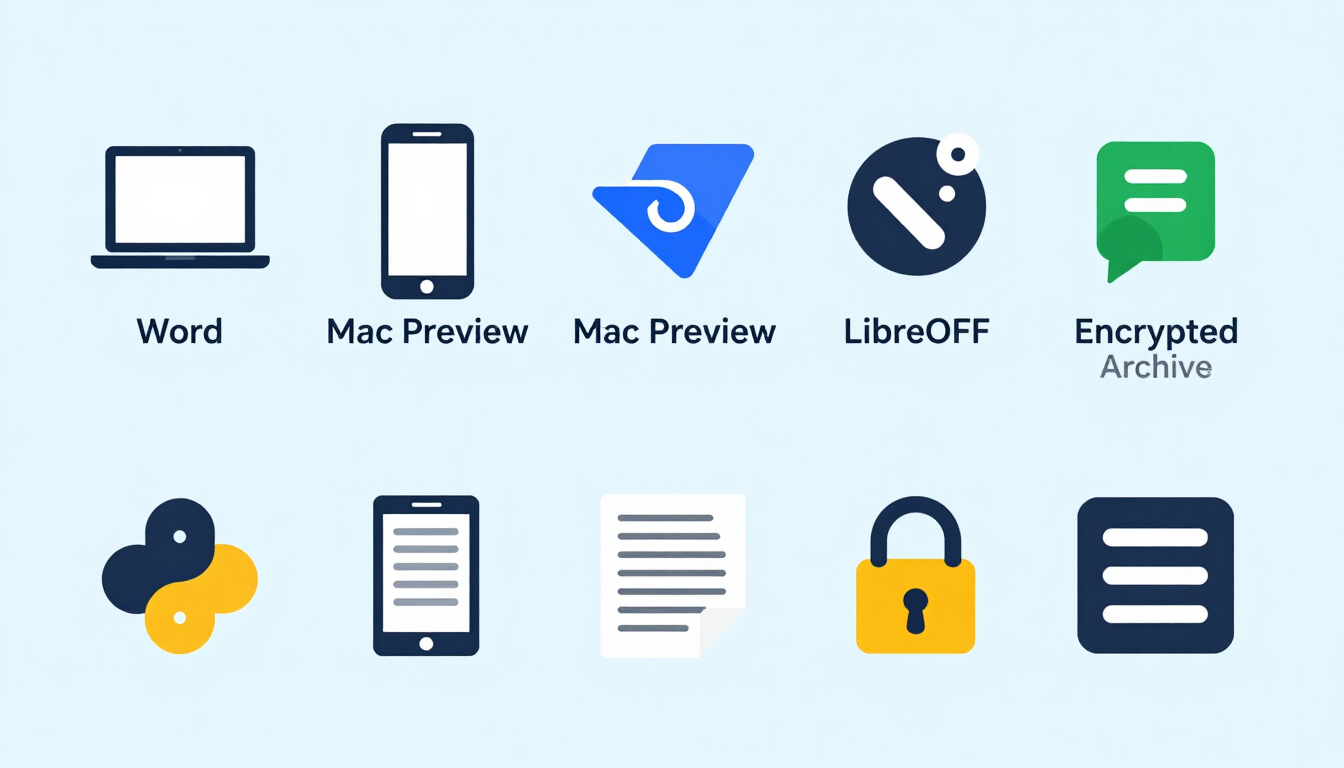
| Method | Existing PDF? | Free | Layout safe | Stays on your device | Skill level |
|---|---|---|---|---|---|
| Word (Windows/Mac) | No, creates new | With Word | Yes | Yes | Easy |
| Mac Preview | Yes | Yes | Yes | Yes | Easy |
| LibreOffice Writer | No, creates new | Yes | Yes | Yes | Easy |
| LibreOffice Draw | Yes | Yes | Not always | Yes | Medium |
| Browser tool | Yes | Yes | Yes | Only if client-side | Easy |
| qpdf | Yes | Yes | Yes | Yes | Medium |
| Python pypdf | Yes | Yes | Yes | Yes | Advanced |
Step 3: Store the Password Before You Send Anything
There is no “forgot password” button on an encrypted PDF. If you lose the password, you lose the file. Recovery tools exist, but with a strong password they can run for a very long time.
Use a password manager
A password manager creates, stores and fills your passwords, so you can use a different long random password for every file and account.
For PDFs, it gives you:
- A safe place for the password. Save it as a note or a login entry named after the document.
- No reuse. Each file gets its own random password.
- A backup. Most managers sync across your devices.
Protect the manager itself with a long passphrase and turn on multi-factor authentication. The Canadian Centre for Cyber Security advises a strong password plus multi-factor authentication for a password manager.
Here is a simple workflow with our tools:
- Generate a 16-character password or a 6-word passphrase.
- Check it in the strength checker.
- Save it in your password manager.
- Paste it into the PDF tool.
- Delete the unlocked original once you confirm the locked copy works.
Compare approaches in Passphrase vs Password: Which Is Better for Security, and read how bits are counted in Understanding Password Entropy.
Test the locked file
Do not skip this.
- Close the PDF.
- Open the protected copy in a different viewer, such as your browser.
- Confirm it asks for a password.
- Enter the password from your manager to make sure it works.
Step 4: Share the Locked PDF Without Leaking It
A strong lock fails if the key travels with it.
Send the password by a different channel
- Email the PDF, and send the password by a phone call or a different messaging app.
- Never put the password in the same message, the same thread or the file name.
- If you must use one app, send the password in a separate chat and delete it afterward.
Expire the password
If the PDF is temporary, tell the recipient when to delete it. For repeat work, re-lock a fresh copy with a new password each time.
Add multi-factor authentication where the file lives
PDFs do not support multi-factor authentication. But the places that store them do:
- Your email account
- Google Drive, OneDrive or Dropbox
- Your messaging apps
- Your password manager
Turn on multi-factor authentication for each one, and prefer an authenticator app or a passkey to SMS codes. A locked PDF inside an unprotected email account is easier to reach than it looks.
Check the file has not changed
If the document is important, share a SHA-256 checksum next to it so the recipient can confirm the file arrived unchanged. The Hash Generator on this site hashes text you paste; if you need a file checksum, use a local tool that accepts files. Read MD5 vs SHA-256 vs SHA-512 before you pick an algorithm.
Common Mistakes That Make a Locked PDF Easy to Open
- Setting only an owner password. The file opens for anyone. Set an open password.
- Choosing a short or predictable password. Names, dates, phone numbers and
Pdf@1234fall fast. - Reusing your email password. One old leak opens everything.
- Sending the password in the same email. It undoes the lock.
- Uploading to an unknown site. You handed your file to a stranger.
- Keeping the unlocked original in a synced folder. Cloud sync makes extra copies. Delete or move it.
- Choosing old encryption. RC4 is outdated. Use AES-256.
- Not testing the file. Confirm the password prompt before you send.
- Losing the password. Save it in a manager before you close the tool.
Do You Need Business-Level Protection?
For a personal document, a strong password on an AES-256 PDF is enough. For contracts, patient data or customer records, add more layers:
- Share by a secure link with an expiry date instead of email attachments.
- Limit who can view the file and log their access.
- Keep a written policy for how long files are kept.
A PDF password is one layer. It is not a full data-protection program.
Related Security Tools
Use these free tools from CreatePassword.in with the steps above:
- Password Generator: create the random open password
- Passphrase Generator: create a memorable passphrase
- Password Strength Checker: test it before use
- Breach Checker: confirm an old password has not leaked
- PDF Password Protector: lock the file in your browser
- Hash Generator: create a checksum for text you paste
- API Key Generator and UUID Generator: for developers who automate document workflows
- QR Code Generator: share a download link (never put a password in a QR code)
Frequently Asked Questions
Can I password protect a PDF for free without Adobe Acrobat?
Yes. Use Microsoft Word, Mac Preview, LibreOffice, a browser-based tool, or the free qpdf command. Each adds an open password without Acrobat. Mac Preview and qpdf work best for a finished PDF because they do not change your pages.
Is it safe to use an online PDF password tool?
It depends on the tool. Safe tools process the file inside your browser. Unsafe ones upload it to a server. Open your browser’s Network tab (F12) while you use the tool. If your file leaves your device, use Preview, LibreOffice or qpdf instead.
What is the difference between an open password and an owner password?
An open password is required to view the file and drives the encryption. An owner password only limits actions like printing or copying, and some software ignores those limits. For privacy, always set an open password.
How strong should my PDF password be?
Use at least 12 characters for everyday files and 14 to 16 for sensitive ones, or a random passphrase of six words. Make it unique and random. Attackers can copy the file and guess offline, so weak passwords are the main risk.
Can I password protect a PDF on my phone?
Yes. The easiest way is a browser-based tool that works in Chrome or Safari. Choose one that processes the file on your device. Save the password in a password manager on your phone before you share the file.
Can someone crack or remove a PDF password?
Yes, if the password is weak or the encryption is old. Short, common or date-based passwords fall quickly, and RC4 encryption is outdated. A long, random password on an AES-256 file is very hard to crack. Owner-password restrictions are easy to strip, so never rely on them for secrecy.
What if I forget the PDF password?
There is no official reset. Try passwords you saved in your password manager or notes. Recovery software exists, but it only works in reasonable time on weak passwords. Prevention is better: save the password in a manager before sharing the file.
How do I remove a password from a PDF I own?
Open the file with the password, then save or export a copy without the encrypt option (in Word, Preview or LibreOffice). With qpdf, run qpdf --password="YOUR-PASSWORD" --decrypt protected.pdf unlocked.pdf. Only do this for files you own or have permission to unlock.
Should I send the password in the same email as the PDF?
No. Anyone who reads that email gets both the lock and the key. Send the password by a different channel, such as a phone call or another messaging app. For high-risk files, share it in person or by voice.
Key Takeaways
- Use Word, Mac Preview, LibreOffice, qpdf or a client-side browser tool. Adobe is not required.
- Set an open password. An owner password alone does not protect your content.
- Pick AES-256 encryption when you can.
- Use a unique random password of 12 to 16 characters, or a six-word passphrase.
- Save it in a password manager before you send the file.
- Send the file and the password through two different channels.
- Protect the accounts where the file lives with multi-factor authentication.
Next step: generate a strong PDF password, then lock your PDF in your browser.
Sources and Further Reading
- Hive Systems, 2026 Password Table
- NIST, SP 800-63B Digital Identity Guidelines
- Canadian Centre for Cyber Security, Best practices for passphrases and passwords (ITSAP.30.032)
- CISA, use strong passwords
- Diceware method, described by its creator Arnold Reinhold
- qpdf documentation and pypdf documentation
Author: Venkateswara Rao, Founder, Createpassword.in. LinkedIn.
Resources & Tools
Home Page
- Password Generator — https://createpassword.in/
Tutorials
- Security Documentation — https://createpassword.in/tutorials
Password Tools
- Password Generator — https://createpassword.in/create-password
- Password Generator — https://createpassword.in/tools/password-generator
- Password & Security Tools — https://createpassword.in/tools
- Passphrase Generator — https://createpassword.in/tools/passphrase-generator
Articles That Will Help You to Understand to Make Strong Passwords to Secure for Your Online Accounts
- The Ultimate Guide to Using a Password Generator Free — https://createpassword.in/blog/password-generator-free
- Passphrase vs Password — https://createpassword.in/blog/passphrase-vs-password
- Complete Guide to Creating Strong Password — https://createpassword.in/blog/complete-guide-strong-passwords-2026
- Passphrase vs Password: Which Is Better for Security — https://createpassword.in/blog/passphrase-vs-password-security
- 12 Character Password Generator: Free, Secure & Instant Tool — https://createpassword.in/blog/secure-12-character-password-generator
Leave a comment
Comments are moderated before appearing. Please keep it respectful and on-topic. Your email is required for verification but is never displayed publicly or shared.